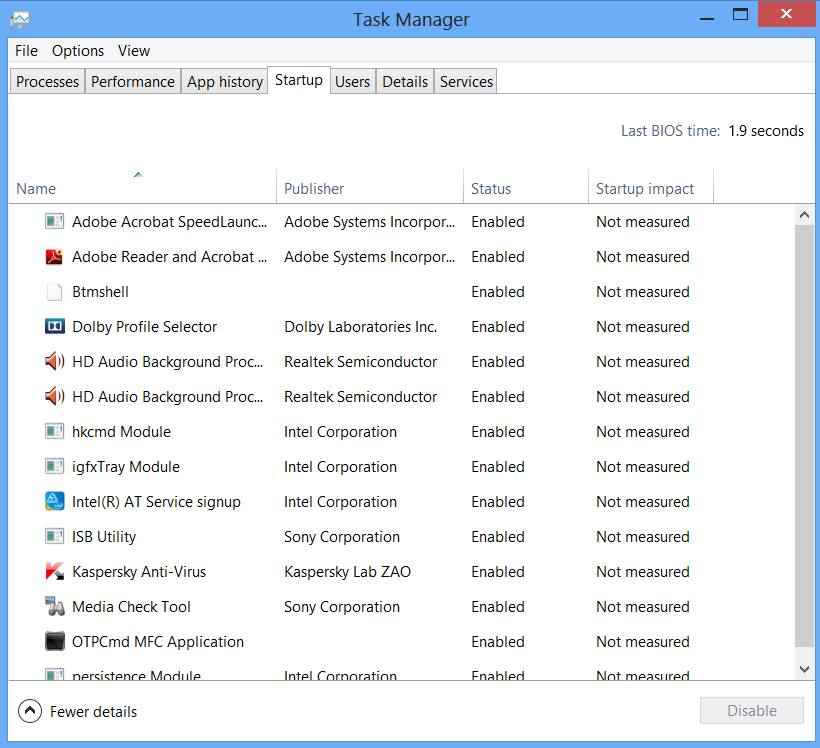
You no longer have to run the MSConfig program to change startup items. Startup items now show up in a tab on Task Manager. Simply press Ctrl + Alt + Del and select Task Manager. Click the "More details" tab at the bottom and find the Startup tab at the top.

Use Windows 8 apps and your desktop simultaneously - Windows 8
Because the Windows 8 experience is split between new Windows 8 Store apps and old-school desktop apps, the operating system is prone to some strange behaviors. Case in point: When running a multimonitor setup, Windows 8 apps will consume your main screen, leaving your secondary screen running the desktop. This arrangement would seemto allow full-screen multitasking among both types of apps—a modern app on the left side, a desktop app on the right side—but this isn’t the case. Indeed, as soon as you begin using the desktop on your secondary screen, the new-style Windows 8 app disappears, and your primary screen begins running the desktop.
But here’s a workaround. On your primary screen, use the new Windows 8 split-screen “snapping” function to run the desktop and a new Windows 8 Store app together. The desktop can take up the left-hand sliver, while the Windows 8 app consumes the majority of the screen. Now use your second display for a full desktop view. In this arrangement, you can fully multitask between new-style apps and desktop apps, and both windows will be large enough to be useful.
Bring up the Quick Access Menu - Windows 8

Right-clicking on the lower left of the screen—whether you’re in the Windows 8 Start screen or in the desktop—will bring up the Quick Access Menu, which enables a direct line to many key system management chores, including Disk Management, Task Manager, Device Manager, and Control Panel.
Adjust SmartScreen settings - Windows 8
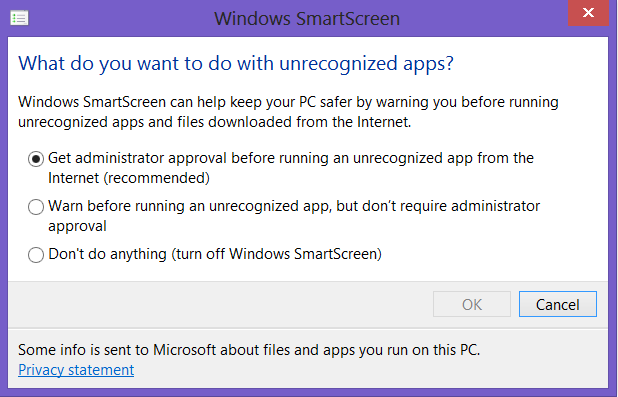
SmartScreen warns you before running an unrecognized app or file from the Internet. While it's helpful to be aware of a file's source, constant warnings can also get a little annoying. By default, you need an administrator's permission, but this can easily be adjusted to just a warning or no indication at all. Using the magic search function described above, type "security" at the Start screen and find the "Check security status" in the Settings tab. From this area, you can adjust various security settings, including the Windows SmartScreen.
Adjust privacy settings - Windows 8
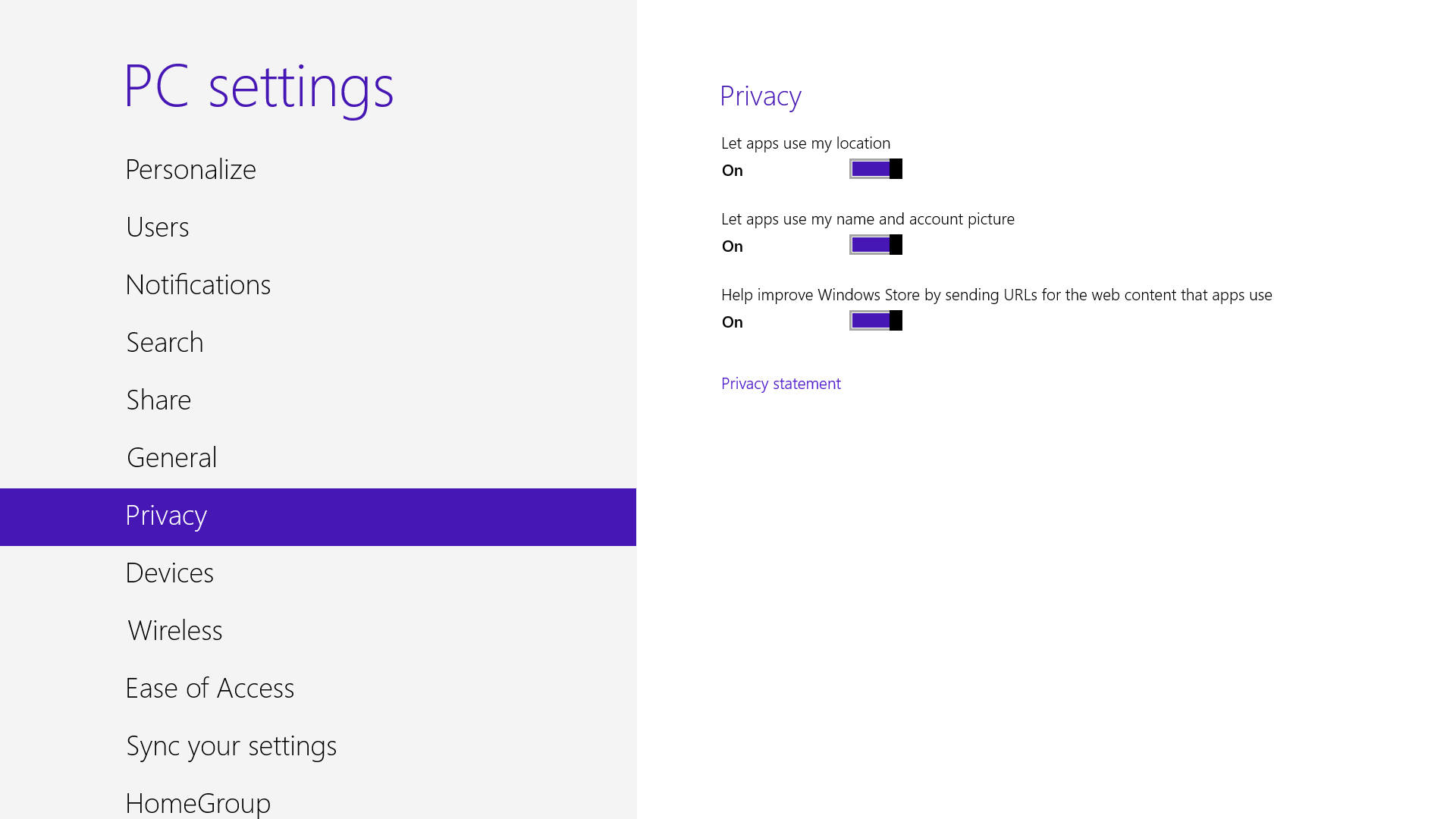
A lot of apps tap into very personal information by default. Indeed, your pictures, location, and name are liberally woven throughout the system, and like many users you may not be comfortable trusting your machine with that much sensitive data. To adjust the settings, press the Windows key + I, and go to Change PC Settings. Select the Privacy option, and personalize the settings for your personal data there.
Use centralized, contextual search - Windows 8

The Search function located on the Charms bar is packed with power, letting you search the directories of not only your Windows 8 machine, but also the greater Windows ecosystem. Simply choose the bucket of data you want to sift through—it could be all your installed apps, your system settings, your files, your mail messages, or even an external service like the Windows Store or Bing Maps—type in a keyword, and hit Enter. The Search function will then return the results, perfectly contextualized for the database you’ve addressed
Oh, and how's this for cool? You don't even need to hit the Charms bar to access Search. From the Start screen, simply start typing, and you'll be quickly whisked to the text-entry field for search queries. Try it. It works!
Close an application - Windows 8
Closing an app sounds simple enough, but you'll quickly notice that close buttons are hard to find in Windows 8. That's because Microsoft encourages us to run apps in the background where they'll take up minimal resources, but still be accessible at any time.
Nonetheless, if you insist on being rebellious, you can close an app by dragging it with your mouse or finger from the top of the screen all the way down to the bottom. As you drag, the app will miminize into a thumbnail, and when you reach the bottom, it will disappear from view. Alternatively, you can still close apps via Alt + F4 and through the Task Manager.
Subscribe to:
Posts (Atom)
Popular Posts
-
 Turn Live Tiles on and off - Windows 8
-
Boot to the desktop without an app - Windows 8
-
Adjust privacy settings - Windows 8
-
Adjust SmartScreen settings - Windows 8
-
Create a picture password - Windows 8
-
Start in Safe Mode - Windows 8
-
Use Windows 8 apps and your desktop simultaneously - Windows 8
-
Zoom in tight - Windows 8
-
Log in without a username or password - Windows 8
-
Top 10 Best Perfumes for Women in 2012

