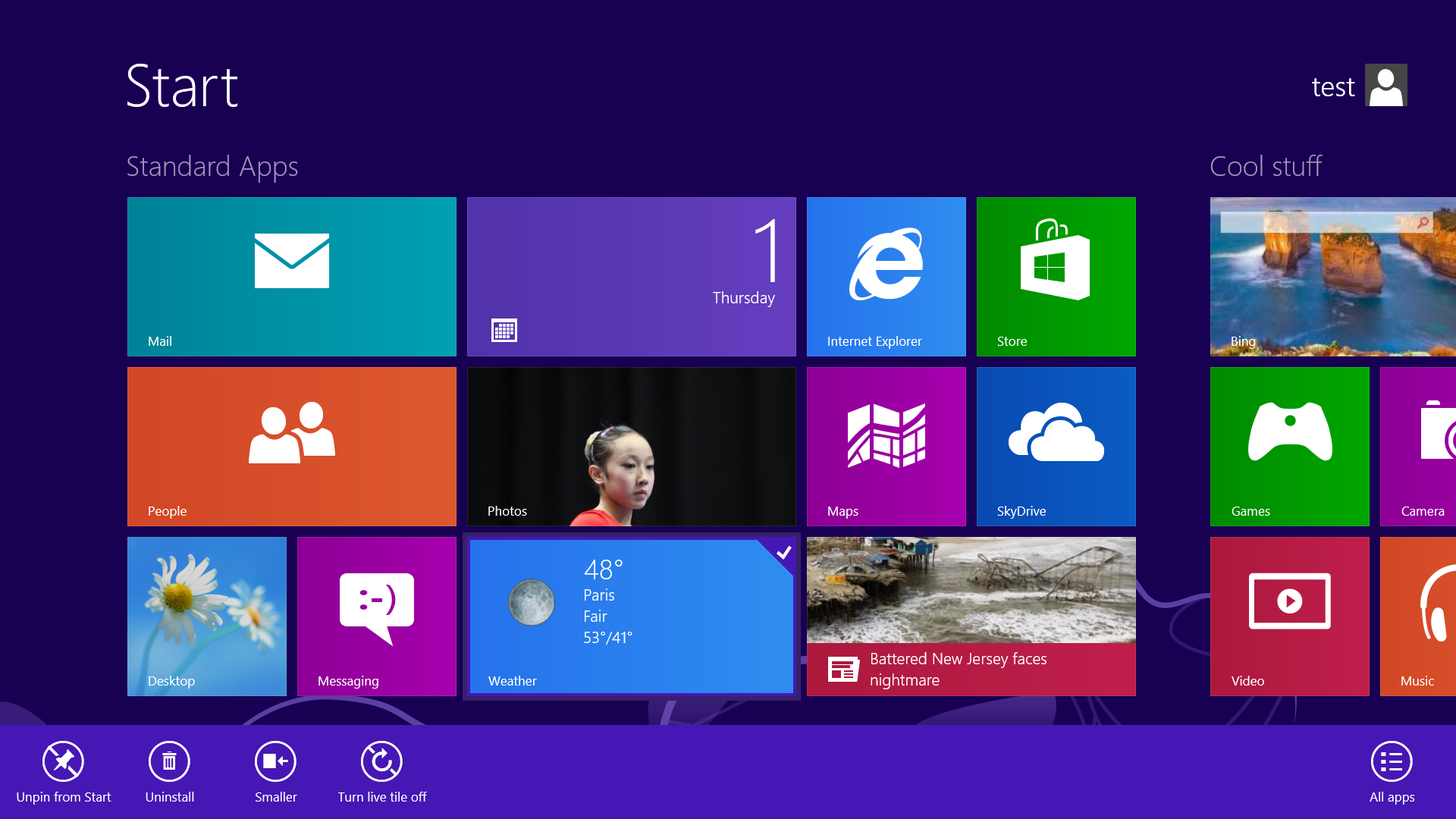
Use the Live tile option to customize what you want to see.
When looking at the plethora of tiles on your Start screen, the view can get stagnant, despite all the pretty colors.This is where Live Tiles come in. They offer real-time data right on your Start screen, and you don't need to open any apps. For example, the Weather tile will show you the current conditions, and Mail will show you the subject of the latest message you've received.
You can customize which apps are live and which aren't by right-clicking on the tiles. A settings bar on the bottom will pop up with an option to turn the Live Tile on or off. Simply select the preferred option, and you're all set. Note, however, that not all apps have a live, real-time data-streaming option.
Safe Mode is a great way to get into your system when something won't allow you to start up normally. Troubleshooting becomes a breeze when corrupted drivers and files aren't loaded that prevents a system from functioning. It used to be as easy as pressing F8 when the system starts up, but doing so with Windows 8 will take you to Automatic Repair Mode. The trick to getting back to good old fashioned Safe Mode? Hold down the Shift key and press F8 while booting up.
This takes you to the Recovery mode. Select "advanced options," then "troubleshoot," then the "advanced options" again (there are a lot of advanced options). Select Windows Startup Settings and finally the Restart button. This will reboot the computer and give you the option to boot into Safe Mode.
If you need to get into Safe Mode from within Windows, open the dialog box (the Windows key + R) and type "msconfig" (no quote marks). Select the Boot tab and check the Safe boot box. The system will continually boot into Safe Mode until you go back and uncheck the box.
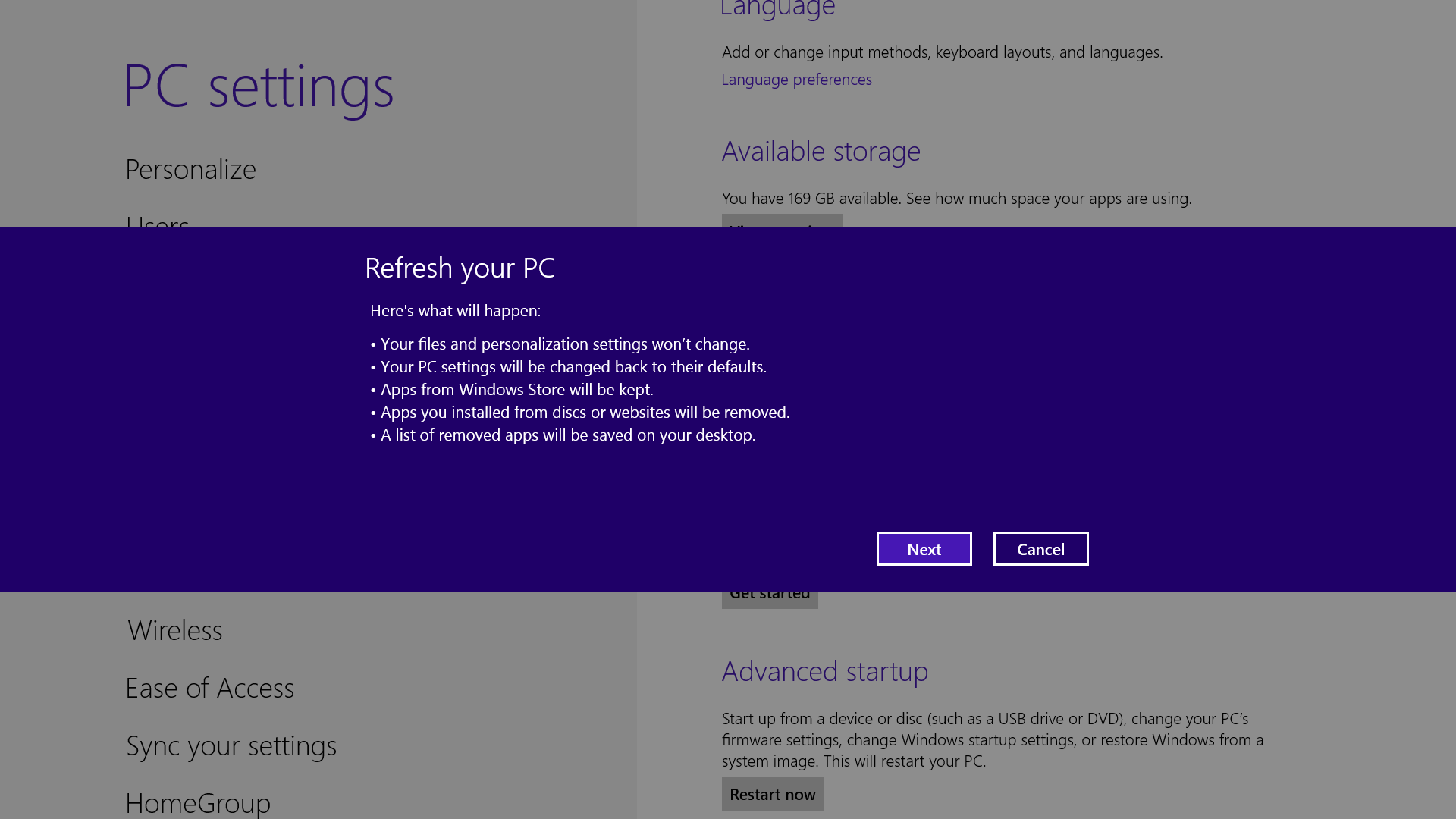
If your system is feeling a little sluggish, it may be time for a refresh. In the past we would have to find our copy of Windows 7, back up all of our data, and perform a fresh install to enjoy that back-to-factory-fresh feeling. But now Windows 8 allows you to perform a fresh install from within Windows without losing any data.
In order to perform the refresh, go to Settings and click the Change PC Settings tab near the bottom. Select the General tab and find the "Refresh your PC without affecting your files" section near the middle (you may also select "Remove everything and reinstall Windows" to get the true factory settings treatment). Select "Get started" and press "Refresh." After a few minutes the PC will restart, and you will have a fresh copy of Windows 8.
To speed up the log-in process, you may want to disable the username and password log-in screen. You can do so by opening the Run window (press the Windows key + R) and typing in "netplwiz" to access the User Accounts dialog box. Uncheck the box near the top that says "Users must enter a user name and password to use this computer." ClickOK, and enter the username and password one last time to confirm your choice, and you are all set for easy access to your system.
Skip the Start screen and get right to the Desktop.
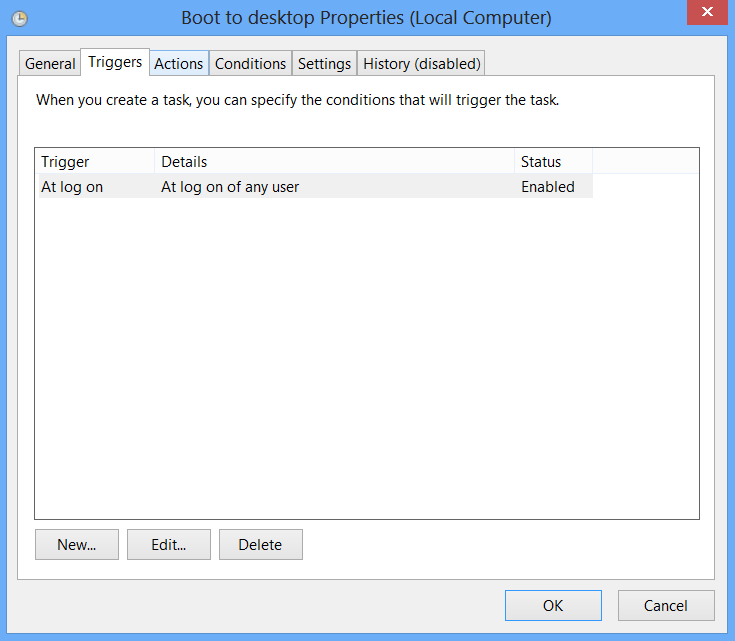
One of biggest complaints about Windows 8 is that it boots straight to the Start screen—an annoyance for many committed desktop users. The Start8 utility helps you avoid this indignity (among other cool features), but you can actually boot straight to the desktop without installing anything extra.
Go to the start screen and type in "schedule" to search for Schedule Task in Settings. Click on Task Scheduler Library to the left, and select Create Task. Name your task something like "Boot to desktop." Now select the Triggers tab, choose New, and use the drop-down box to select starting the task "At log on." Click OK and go to the Actions tab, choose New,and enter "explorer" for the Program/Script value.
Press OK, save the task, and restart to test it out!
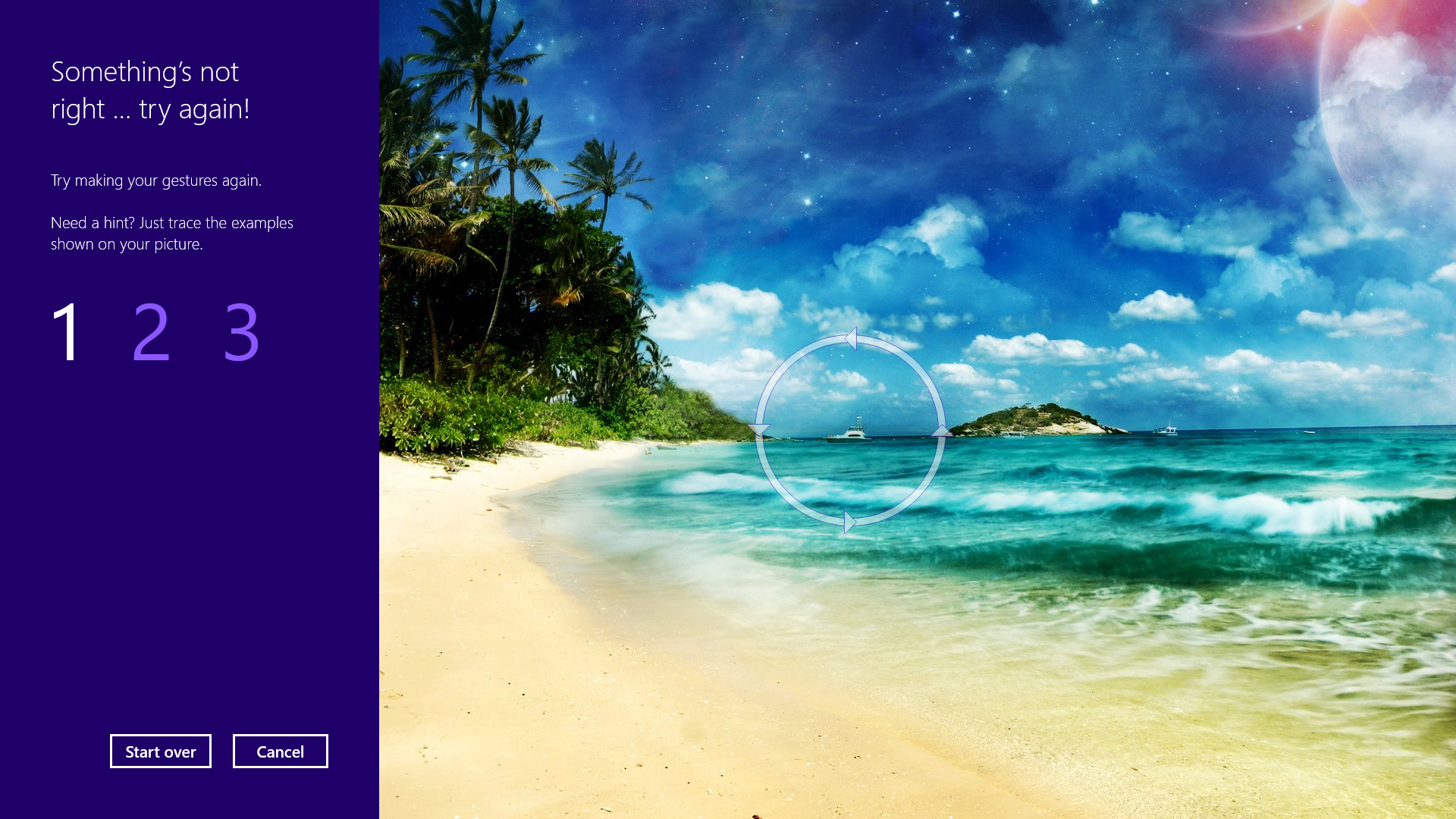
Using a picture password is a fun way keep your device secure while not having to remember a complex password. To enable it, press the Windows key + I to get to the settings charm. Click "Change PC settings" at the bottom right, and go to the Users tab. Under "Sign-in options" will be the "Create a picture password" button. This will give you the option to choose any picture, and then define three gestures anywhere on the image. Your gestures can be circles, swipes and clicks.
For example, to set a picture password for the image above, you could click on the highest palm tree, draw a circle around the island, and then swipe down from the lens flare in the upper right. Just beware: The direction of each gesture matters! After confirming it a couple times, your picture password will be set.
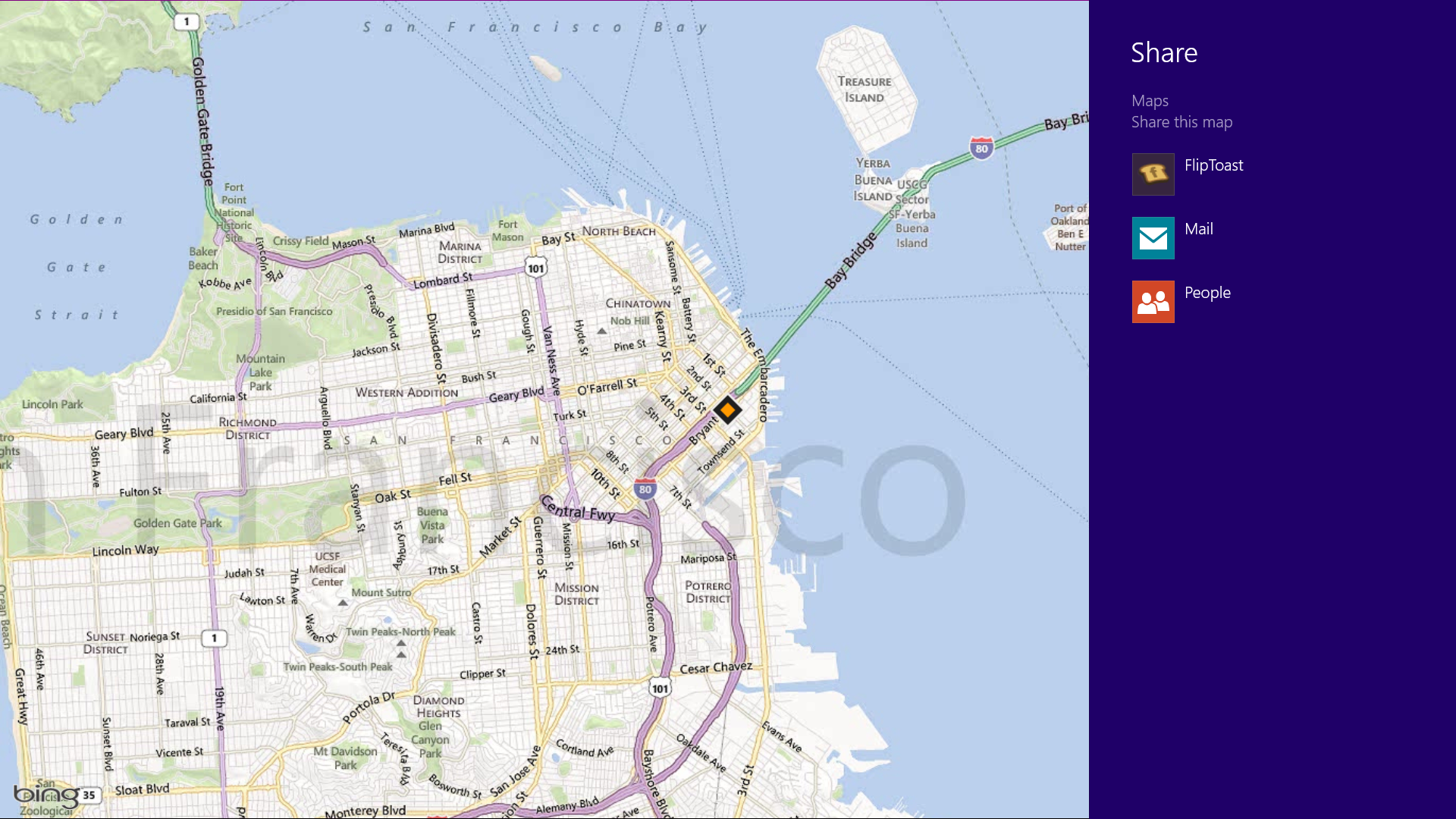
Windows 8 is Microsoft’s first social-media-aware PC operating system. Using the Share button located on the Charms bar, you can pick any number of elements from your Windows 8 Store apps—say, a location from your Maps app, a news story from the Finance app, or a even a contact from your People app—and then distribute that item to friends via other Windows 8 programs.
Perhaps most conveniently, you can quickly share a photo via email or Twitter, or to your own SkyDrive or Windows Phone. The Share button is contextual, and the more you use it, the more you’ll discover which apps share with each other, and which don’t. (Hint: None of your desktop apps offer sharing opportunities through the Charms menu.)
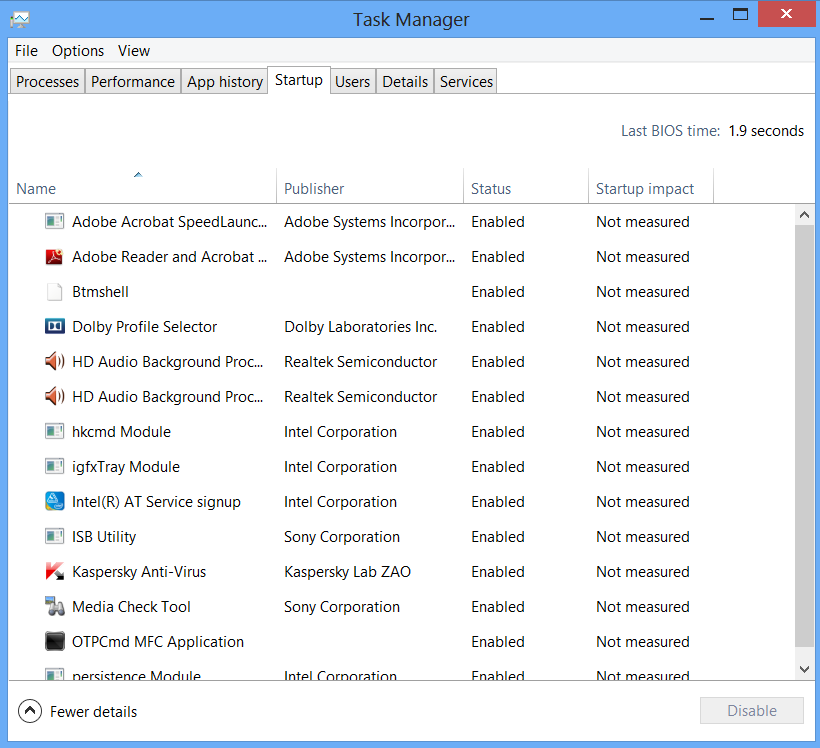
You no longer have to run the MSConfig program to change startup items. Startup items now show up in a tab on Task Manager. Simply press Ctrl + Alt + Del and select Task Manager. Click the "More details" tab at the bottom and find the Startup tab at the top.
Because the Windows 8 experience is split between new Windows 8 Store apps and old-school desktop apps, the operating system is prone to some strange behaviors. Case in point: When running a multimonitor setup, Windows 8 apps will consume your main screen, leaving your secondary screen running the desktop. This arrangement would seemto allow full-screen multitasking among both types of apps—a modern app on the left side, a desktop app on the right side—but this isn’t the case. Indeed, as soon as you begin using the desktop on your secondary screen, the new-style Windows 8 app disappears, and your primary screen begins running the desktop.
But here’s a workaround. On your primary screen, use the new Windows 8 split-screen “snapping” function to run the desktop and a new Windows 8 Store app together. The desktop can take up the left-hand sliver, while the Windows 8 app consumes the majority of the screen. Now use your second display for a full desktop view. In this arrangement, you can fully multitask between new-style apps and desktop apps, and both windows will be large enough to be useful.
The secret Start button for power users is hidden at the bottom-left.
Right-clicking on the lower left of the screen—whether you’re in the Windows 8 Start screen or in the desktop—will bring up the Quick Access Menu, which enables a direct line to many key system management chores, including Disk Management, Task Manager, Device Manager, and Control Panel.
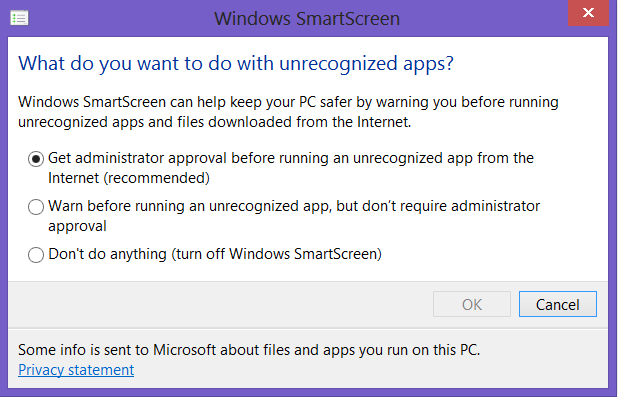
SmartScreen warns you before running an unrecognized app or file from the Internet. While it's helpful to be aware of a file's source, constant warnings can also get a little annoying. By default, you need an administrator's permission, but this can easily be adjusted to just a warning or no indication at all. Using the magic search function described above, type "security" at the Start screen and find the "Check security status" in the Settings tab. From this area, you can adjust various security settings, including the Windows SmartScreen.
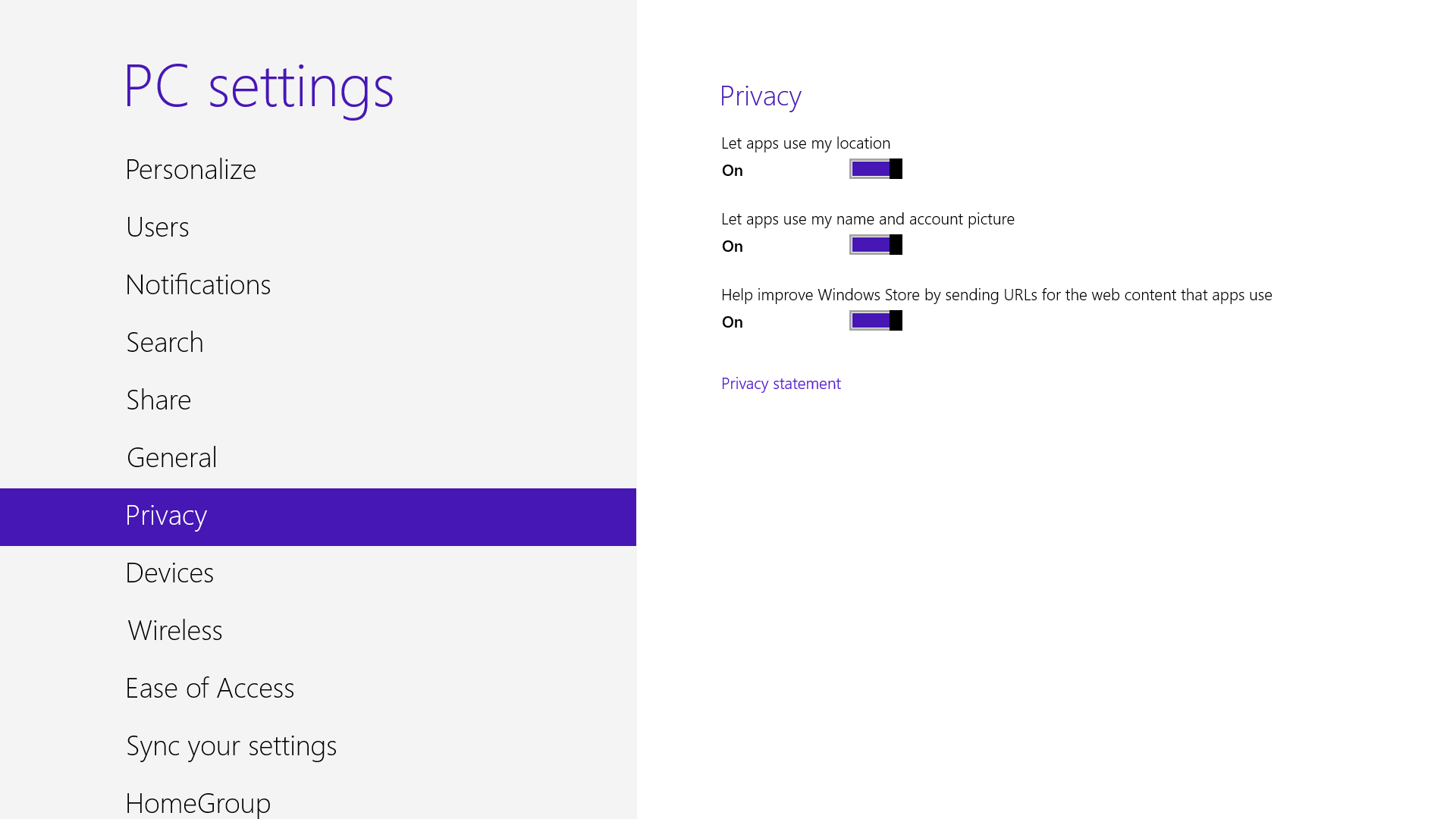
A lot of apps tap into very personal information by default. Indeed, your pictures, location, and name are liberally woven throughout the system, and like many users you may not be comfortable trusting your machine with that much sensitive data. To adjust the settings, press the Windows key + I, and go to Change PC Settings. Select the Privacy option, and personalize the settings for your personal data there.
The Search function located on the Charms bar is packed with power, letting you search the directories of not only your Windows 8 machine, but also the greater Windows ecosystem. Simply choose the bucket of data you want to sift through—it could be all your installed apps, your system settings, your files, your mail messages, or even an external service like the Windows Store or Bing Maps—type in a keyword, and hit Enter. The Search function will then return the results, perfectly contextualized for the database you’ve addressed
Oh, and how's this for cool? You don't even need to hit the Charms bar to access Search. From the Start screen, simply start typing, and you'll be quickly whisked to the text-entry field for search queries. Try it. It works!
Closing an app sounds simple enough, but you'll quickly notice that close buttons are hard to find in Windows 8. That's because Microsoft encourages us to run apps in the background where they'll take up minimal resources, but still be accessible at any time.
Nonetheless, if you insist on being rebellious, you can close an app by dragging it with your mouse or finger from the top of the screen all the way down to the bottom. As you drag, the app will miminize into a thumbnail, and when you reach the bottom, it will disappear from view. Alternatively, you can still close apps via Alt + F4 and through the Task Manager.
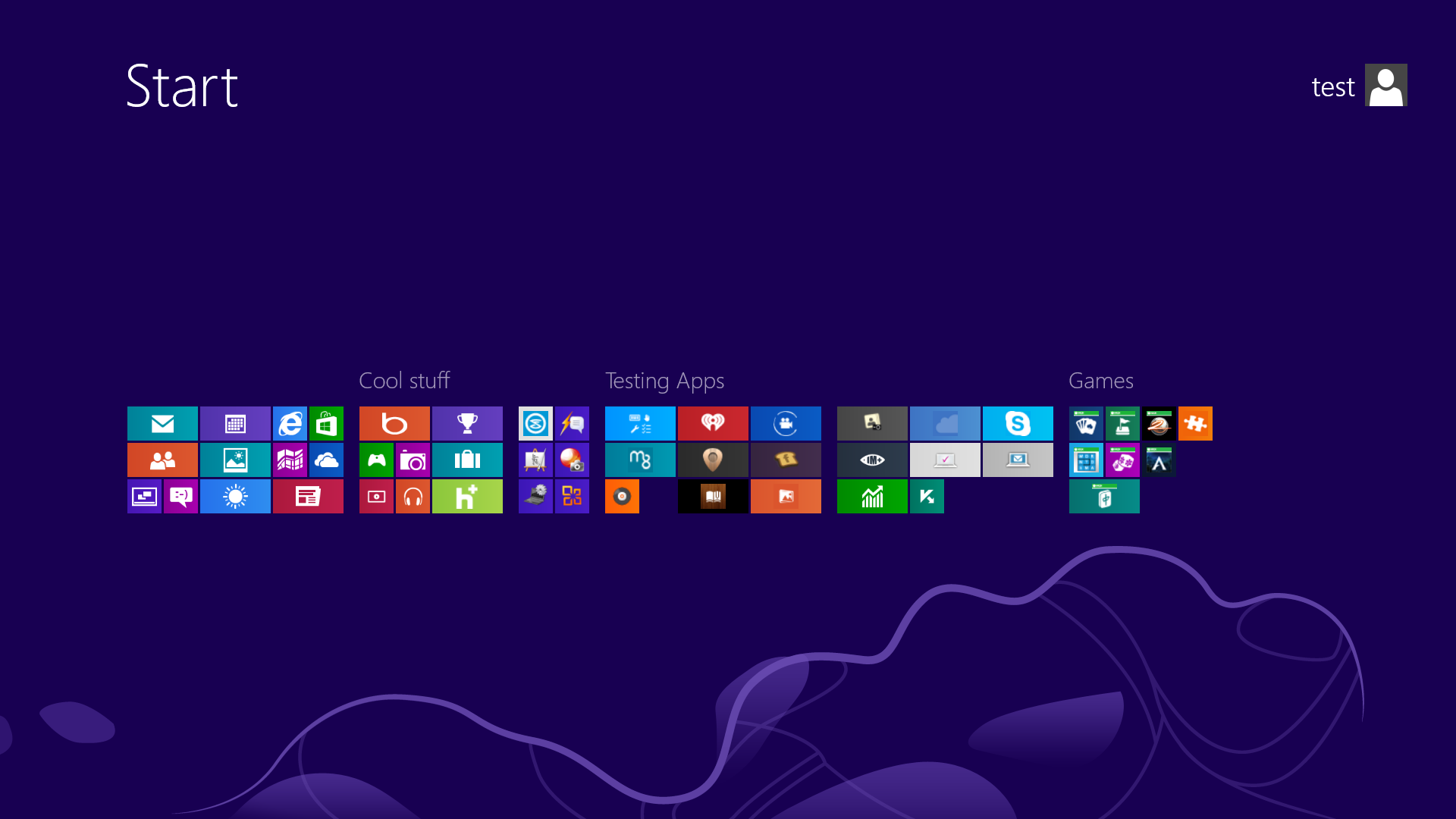
Your Start screen can become a cluttered mess if you collect too many apps and other elements that have been pinned to the screen as tiles, so take advantage of built-in organization tools that let you divide everything into labeled groups.
First, drag all the tiles you want to assign to a single group to the far right-hand side of your Start screen in vacant territory; the OS should sequester the tiles together. Once you're satisfied with your assembly, use semantic zoom (described above) to get a bird's eye view of your desktop. Now right-click the group (or simply drag down on it), and select the "Name group" option on the left of the bar that appears below. Type in the name, and enjoy your newly organized Start screen!
See all your tiles and groups at once with semantic zoom.
The Start Screen is full of nice, big, chunky tiles that represent all your apps. The tiles are easy to see in small groups, but what if you have hundreds of apps installed? Most will be hidden from view, unless you want to do a lot of scrolling. Enter the new semantic zoom feature. If you’re using a touch display, squeeze the Start screen with two fingers to receive a bird’s eye view of your entire screen contents. And the feature is also available to mouse and keyboard users: Simply hold down the Ctrl button, and use your mouse wheel to zoom in and out.
In these key combinations, hold down the Windows key (normally located between Alt and Ctrl) and another key, as described on this list.
Press the Windows key to enter the tiled Start screen.
The Windows key + M minimizes everything that's showing on the desktop.
The Windows key + E opens Explorer for quick access to folders.
On the Start screen, press the Windows key + D to instantly get to the desktop.
The Windows key + Tab opens a list of currently running programs.
The Windows key + Print Screen takes a screenshot and saves it in a Screenshots folder nested in your Pictures folder.
To take a screenshot on a Windows 8 tablet, simultaneously press the Windows button and the volume-down button on the tablet chassis.
The Windows key + Q opens a global search menu. Type what you're looking for and where you would like to look.
The Windows key + W opens a search in your system settings to quickly locate and change system properties.
The Windows key + F opens a file and folder search.
The Windows key + Pause opens the system properties page to show you a quick rundown of your specs.
The Windows key + "," (that's the comma sign!) makes all current windows transparent, giving you a peek at the desktop as long as you hold down the Windows key.
The Windows key + "." (the period) snaps a window to the right or left side (toggling each time you press ".").
The Windows key + R prompts the Run command—useful for quickly launching apps and other routines with a command prompt.
The Windows key + X opens the Quick Access Menu, exposing system functionality such as the Command Prompt, Disk Management, File Explorer, Run, and more. Alternatively, you can right-click on the bottom right corner of the screen to spawn the Quick Access Menu.
The Windows key + I opens the settings menu, giving you quick access to the Control Panel, Personalization, and your Power button, among other features.
The Windows key + O locks orientation on devices with an accelerometer.
The biggest news this year was, of course, the release of Windows 8, which brought renewed energy to the PC ecosystem, along with more than its fair share of controversy—not the least of which was Microsoft's matter to take hardware matters into its own hands with the launch of its self-made Surface tablet.
The move represented a new willingness on the part of the software giant to compete directly with the OEMs that have traditionally been Microsoft’s closest allies. Fears from Microsoft's OEM partners seem to be playing out, with the Surface RT snagging the lion's share of the (lackluster) early Windows RT tablet market. The Surface doesn’t look to be a one-off excursion for Microsoft, either. The company's latest shareholder letter makes explicit that hardware is going to be a part of Microsoft’s future, for better or for worse.
Windows 8's pretty tiles aren't without controversy.
About the Start screen: First, let’s deal with the divisive Start screen. I’ll admit that I had some misgivings on this score initially. But once I realized that the Windows 8 Start screen simply replaces the old Start menu, my reluctance about moving to Windows 8 vanished. The Start screen is flat, rather than hierarchical, as earlier Windows OSs are; however, that simplification in design makes it much easier to navigate. Whether you use a touch-enabled screen, a laptop touchpad, or the scrollwheel on a mouse, practically everything you need for launching and managing applications is right there, within easy reach. And if you’re a Start menu diehard, you can right-click the lower left portion of the Start screen to bring up a simplified Start menu.
Numerous small improvements to the desktop user interface make many computing tasks easier to perform. Pull down the File menu in File Manager to see the system’s list of frequent places. Click the Home menu to get a pop-down ribbon of commonly used commands. Need the control panel? Move the mouse cursor to the lower left and right-click, or press Windows-X, and the simplified Start menu appears with commonly needed desktop commands.
If you can’t find an application by pointing and clicking, start typing its name; you’ll likely find it via search.
Under the hood: The biggest improvements to Windows 8 are under the hood. The new graphics subsystem, which uses DirectX to render all text and windows, makes the OS more responsive as you move windows or scroll through the Start screen. Internet Explorer 10 and Microsoft Office 2013 feel faster, too. The graphics subsystem also provides a framework for 3D acceleration on tablets and on Windows 8 Phones.
Both printing and printer handling work significantly better, thanks to Windows 8’s use of what Microsoft calls an extensible print-class driver framework. Instead of having to keep track of thousands of individual printer drivers, Windows 8 can use a single class driver to support multiple similar printers. In addition, the user interface for managing print jobs and printer features is simpler and more visual than in Windows 7.
The new Storage Spaces feature allows users to create redundant storage from drives of diverse sizes that may be attached to different interfaces, and the resulting storage pools protect their data from drive failures. File History, another storage-related feature, makes backups simpler and easier to perform.
Yet another noteworthy improvement is Microsoft’s upgraded system refresh capability, which enables you to restore a system to its clean-install or almost-clean-install state after a poorly written application has damaged it—and to do so while retaining all of your files and settings. Furthermore, if you’re willing to work from the command prompt, you can customize what the refresh system keeps and what it discards.
Windows 8's updated system refresh allows you to customize your image-restore settings to meet your needs.
Touch: Windows 8 offers true ten-point multitouch that works well. Skeptical PC users may remember past Microsoft Tablet PC efforts that were clunky and cumbersome to work with, but Windows 8 is a different animal altogether. Touch is an integral part of the experience, not a bolted-on afterthought.
A common ecosystem: Having a common app ecosystem that will run on PCs, tablets, and even phones brings Microsoft into the second decade of the 21st century. Though old-school PC users may lament the changes that their desktop system has undergone, the ability to navigate through a phone or tablet similarly to the way you would through a laptop or desktop PC promises to make your computing life easier.
Reviewing an operating system is an odd endeavor, because people don’t really use operating systems; they use applications. The OS should be as transparent as possible, acting as a platform for applications. In today’s cloud-driven world, however, the notion that your application will run in a single OS is tenuous at best. Toss in the increasing use of smart devices, whether phones or tablets, and the idea of a single-platform operating system is less relevant now than it was just a few years ago. These days we have “ecosystems”—Microsoft, Apple, or Google, take your pick.
That said, PC users still expect their Windows applications to run as before, and they want to have the same control over their laptop and desktop computers as they’ve always had. New software features should enable users to do more. And as the reaction to the late, unlamented Windows Vista illustrated, all the shiny new bells and whistles should not harm performance or require new hardware.
Can Windows 8 meet its goal of being one aspect of a new Microsoft ecosystem while maintaining its roots in the PC? Can existing computers run Windows 8 without the need for expensive new touch displays? Will the revamped Windows 8 user interface turn off existing Windows users or pull them into the ecosystem? I’ll try to answer those questions and others as I dive deeply into Windows 8.
This review is based on the Windows 8 final release—what Microsoft calls the “release to manufacturing,” or RTM, version. The final release is available to Microsoft TechNet and MSDN subscribers. Desktop PCs, laptops, and tablets ship with Windows 8 preinstalled on the official launch day, October 26.
We ran Windows 8 on a moderately high-end desktop system along with a standard (nontouch) monitor, mouse, and keyboard. We also used a Samsung Series 9 laptop with an Elan touchpad supporting full multitouch gestures.
The Windows 8 user interface
Windows 8 tries to get you to tie your Windows login to your Microsoft account; it’s optional, but if you do link the two, the Windows login and password serve as your Microsoft account login and password. Enabling this link allows tighter integration with the remote and cloud-based features of the new OS.
As mentioned previously, Windows 8 is designed to be part of an ecosystem, alongside Windows Phone and Windows RT. Microsoft believes in this idea so strongly that it has made the Windows 8 user interface (formerly called Metro) the primary interface for Windows users. PCs with the new OS installed will boot into the Windows 8 interface; the OS offers no built-in way to set it to boot to the traditional Windows desktop.
The Windows 8 interface acts as the Start menu now. Instead of appearing as columns of small icons that pop up when you click the Start button, all your applications show up as tiles on the Windows 8 Start screen. You can also search for an application by typing its name when you’re in the Start screen; the results list autosorts as you type more characters.
All applications show up as tiles on the Windows 8 Start screen.
It’s important to realize that the Start screen is no more Windows 8 than the Start menu was Windows 7 or Windows XP. The screen exists as a launchpad for applications, not as a desktop replacement. That concept is easy to forget, since the Start screen occupies the entire display. Even so, Windows 8 apps consume the entire screen, whereas desktop applications can still run in a window on the desktop.
However, not all desktop applications appear on the Start screen by default. Some accessory apps, such as Paint, live in the Apps screen. You can force these programs to appear in the Start screen by right-clicking them to select them and then clicking Pin to Start at the bottom of the screen. Nevertheless, getting to the Apps screen is simple: Right-click a blank area in the Start screen and then click the All apps icon at the lower right.
This is where you’ll run into a fundamental change in how you interact with Windows. Previously, right-clicking an object on the desktop always brought up a context menu, giving you a choice of actions to take. In the Windows 8 interface (but not the desktop), right-clicking now produces a bar at the bottom of the screen containing assorted context-sensitive items. It’s a jarring change, but the arrangement makes sense within the context (no pun intended) of a touch-based display such as a tablet’s. (Context-clicking still works the same way when you’re in the Windows desktop.)
Live tiles are among the key features of the Windows 8 Start screen. While normal (non-live) tiles measure 150 by 150 pixels, most live tiles are double-wide (310 by 150 pixels) and display dynamic information. The People tile, for instance, shows you tweets and Facebook posts from your feeds, assuming that you’ve set them up. As you install apps from the Microsoft Store, more dynamic tiles may appear. Live tiles first appeared in a broad fashion in Windows Phone 7 and Xbox 360 updates, but will exist across all Microsoft platforms going forward.
Navigating the Start screen is easy. If you’re using a mouse with a wheel, moving the wheel scrolls left and right. If you’re using a touchpad, swiping left and right (with one finger) scrolls the tile list. You can drag individual tiles to any location.
Navigating the desktop
Microsoft now partitions applications into “Windows 8” apps (formerly known as “Metro” apps) and desktop applications. The latter are those programs we all know and love from previous versions of Windows, including Microsoft Office.
You cannot boot directly into the desktop, since Microsoft wants the Start screen to be users’ initial experience with Windows 8. For most people, this restriction may not be an issue, but certain vertical applications (specialized programs, such as those for point-of-sale PCs) need to boot directly into a desktop environment. Until Windows 8 versions of such programs become available, users requiring vertical applications should stick with earlier versions of Windows.
If all you need to do is launch an application, you can simply click its tile in the Start screen. If you need robust file management and navigation features, you have to access the desktop. After you boot the machine, pressing the Windows key sends you to the desktop. Unfortunately, the Windows key isn’t consistent in this behavior: If you’re in an app, pressing the Windows key always returns you to the Start screen. Press it again, and you’re in the most recent Windows 8 app. Instead, to move to the desktop consistently, you need to be in the habit of pressing Windows-D. Another option is to move the pointer to the lower left of the screen and click there (though this method works only if you have used no other app recently).
The desktop offers familiar shortcuts and pinned icons.
Except for the omission of a Start menu, the desktop mostly behaves the same in Windows 8 as it did in Windows 7. So how do you reach commonly used features such as the Control Panel, the file explorer, and the Run command? Move your pointer to the lower-left corner and right-click, ignoring the Start-screen peek that pops up. This is the simplified Start menu; you can also bring it up by pressing Windows-X. Or you might prefer to use the search function, entering “Control Panel” or “Run” as the search terms.
Microsoft has chosen to leave the Windows 8 desktop bare, as it did with Windows 7. Given the absence of the old-style Start menu, you may wish to add the system and user-file icons by right-clicking the desktop and selecting the Personalize menu. After you have added those two icons, you can pin them to the Windows 8 Start screen.
Connecting to networks is easier than ever, once you have installed the right drivers. Windows 8 enumerates and displays all of your networked devices—including DLNA devices, network folders you’ve set up, and other computers residing on the network—in any file manager window.
The appearance of individual windows has changed. Gone are the faux transparency and the fake beveled edges, replaced by a completely flat appearance. If you click one of the menu items (such as ‘File’), each window will show a Ribbon similar to the Office 2010 Ribbon. (The Ribbon isn’t sticky, though; it shows up only when you click one of the top-menu items.) The Ribbon contains, in one location, all the information that previous versions displayed in a series of menus and submenus.
Ultimately, navigating the new desktop is similar to getting around the old version, but the absence of a full Start menu may throw you off at first. Using hotkeys, and customizing the desktop and Start screen, might help you become more comfortable in the short run. Once you get used to navigating the system, it’s as transparent as the old one—just different.
The touch experience
The PC you own today almost certainly lacks a touchscreen. You may have a laptop with a touchpad, but most existing touchpads can't take full advantage of the touch capabilities inherent in Windows 8, since they lack the edge detection that is built into recent touchpad hardware.
On the other hand, your next PC may very well have full ten-point multitouch support, even if it's a stock desktop PC. Manufacturers are starting to ship desktop displays with touch capability; the first touch-enabled displays have built-in capacitive touch sensors, which work via a USB connection to the PC. Future touch displays might communicate through some flavor of wireless, including Bluetooth.
More likely candidates for built-in touch are mobile PCs, including traditional clamshell laptops and convertible units that you can transform into tablets, either by concealing the keyboard or by detaching the display, which can act independently as a tablet.
Windows 8 is a different experience with a touch-enabled display, even if you're using such a display with a stock desktop system. At first, you don't think you'll use the touch capabilities. But then your kids come up and start touching the screen—after all, these days young users are growing up expecting displays to be touch-enabled. I've been running Windows 8 on a desktop PC equipped with an Acer T232HL touchscreen display, and although I use the mouse some of the time, I find myself reaching out to use gestures on the screen at other times.
As for other desktop-PC options, look to the emerging generation of all-in-one PCs, such as Sony's 20-inch Tap 20 and the updated version of Lenovo's A720, which are shipping with Windows 8. The Tap 20 is unusual in that it has a built-in battery, which allows you to move it around the home easily and use it as an oversize tablet.
SONYSony Tap 20 All-in-One
With any touch display, you tap app tiles to launch software, swipe the display to access other features, and use multitouch gestures, such as pinch-to-zoom to enlarge or shrink what's on the screen. Touch support makes the Start screen more usable, though the user interface still has some rough spots. For example, if you swipe your finger in from the left just a little, you get thumbnails of currently running or suspended applications. But slide it a bit too far, and one of those apps takes over the screen. You need to develop a delicate touch (no pun intended) to take full advantage of the interface.
Despite Windows 8's new features, performance tweaks, and improvements over Windows 7, its touch support will likely be the defining factor. And despite some imperfections, the touch interface works smoothly. After you use it for a few days, the old way of using Windows will start to seem slightly cumbersome.
Windows 8 on tablets
One of the big reasons for the creation of Windows 8’s new Start screen is the emergence of tablets. Microsoft has tried and failed on several occasions to create a market for tablet PCs, but the models released during those attempts have always been clunky and difficult to use. The gargantuan success of Apple’s iPad—with its streamlined interface and its relentless focus on encouraging content consumption instead of serving as a general-purpose tool—seems to have clarified Microsoft’s goals.
Microsoft's Surface comes in Pro and RT models.
Even so, Microsoft is planning to support two types of tablets. The first type, which resembles the company’s original Tablet PC concept, consists of convertible laptops running Windows 8. Even Microsoft’s Surface Pro is just a thinly disguised laptop that emphasizes touch interaction over keyboard input.
The second type will carry a slightly different flavor of Windows 8, dubbed Windows RT. This version runs only on tablets using ARM processors, rather than Intel or AMD processors. ARM doesn’t make its own hardware, but licenses its processor technology to other companies such as Nvidia, Qualcomm, and Texas Instruments. These companies design system-on-chip (SoC) products, which typically consume very little power relative to their performance. (The iPad, for example, uses an ARM-based SoC that Apple designs and builds.)
Windows RT tablets will have a restricted version of Windows 8. Although such tablets will include the traditional desktop, you will have access to the desktop only on a limited basis, to run preinstalled applications such as Office. You will not be able to install desktop programs; instead, RT tablets will focus on the Windows 8 apps you buy through Microsoft’s Store.
In contrast, tablets with Intel-compatible processors can run the full PC version of Windows 8, and offer complete access to the desktop. They’ll probably cost more than RT tablets, too, as they’ll need broader expansion options, bigger batteries, and more memory. Intel-based tablets will almost certainly be heavier and bulkier, as well: For example, Surface Pro, which has an Intel Core i5 CPU, weighs about a half-pound more than Surface RTdoes.
The existence of two types of tablets on the market may end up confusing consumers, though the differences in price will likely drive shoppers in one direction or the other.
The Microsoft Store
Late to the game, Microsoft is adding a store to Windows, much like the marketplaces for Mac OS X, iOS, and Android. If you want to buy apps from the Microsoft Store, you need to create a Microsoft account.
Perhaps I should say stores, since you’ll find more than one store within Windows 8. You buy Windows 8 apps by clicking the Store tile—but you purchase music by launching the Music app, and you buy videos by launching the Video app.
In addition to playing tunes, the Xbox Music app sells songs.
Even more confusing, the app store is called just the “Store” while the music and video stores are named Xbox Music and Xbox Video. (Of course, both the Music app and the Video app are media playback tools as well, though they are less robust compared with Windows Media Player or the likes of iTunes. The new operating system’s lack of a unified Windows 8–style media player is a pretty significant hole.)
Navigating the Microsoft Store is similar to navigating the Start screen. Featured apps come in individual tiles, and are sorted by groups; each group also has a ‘Top Free’ tile and a ‘New releases’ tile. As of this writing, however, the Store listed only about 1000 apps, so Microsoft has a little catching up to do. The number of apps available at the official Windows 8 launch on October 26 will be more telling.
Personalizing Windows
If you don’t like Windows 8 out of the box, you can customize it, with some exceptions. Perhaps the most controversial exception (as mentioned earlier) is the fact that you can’t set Windows to boot directly to the desktop, though third-party utilities promise to enable this.
Since the Start screen consists of groups of tiles, moving your favorite or most commonly used tiles to the left side of the screen is pretty easy. You can also specify the tile size (normal or double-wide) and turn off live-tile updates if you find them distracting. In addition, you can group tiles by program type, such as business applications, games, and so on.
One configuration option that Microsoft has buried in the past is the startup configuration. In older versions of Windows, customizing which applications launched on startup required entering the Msconfig system-configuration utility. In Windows 8, you can select which applications launch at boot-up with the new Startup tab in Task Manager, which you can easily launch in the simplified Start menu.
The tile-based app store offers both free and paid items.
Some customization configurations are less obvious. One example concerns the games you might buy from Valve Software’s Steam download service. When you install a game from Steam, the procedure asks you whether to create a desktop shortcut. But that shortcut isn’t an application shortcut; it’s actually a URL, which points to the local Steamapps folder where the game is installed. If you right-click a URL shortcut, you’ll find no option to pin it to the Start screen. Instead, you have to copy the shortcut to the Start Menu folder (yes, it’s still called the ‘Start Menu’ folder), typically in C:\Users\user folder\AppData\Roaming\Microsoft\Windows\Start Menu.
Desktop customization is also available, except for the obvious lack of Start-menu tweaks. The taskbar is present, as it was in Windows 7, and you can pin applications to it as before.
Graphics improvements
Nearly all of the desktop and Start-screen functionality now relies on acceleration from your machine’s graphics processing unit. Many of Windows 8’s windows subsystems use the DirectX API. HTML5 and SVG (scalable vector graphics) also depend on GPU acceleration, in the form of enhanced 2D geometry rendering. Applications tell Direct2D what to draw in the form of 2D objects, such as circles and rectangles, plus additional features such as color and style. The API converts the instructions into a format suitable for Direct3D, which passes the instructions to the GPU. As a result, normal desktop windows will likely see substantial performance increases.
On top of that, Microsoft has added a new programming interface, DirectText, which offloads text rendering to the GPU. Text-rendering performance in desktop programs and in Windows 8 apps is double that of Windows 7—often better than double.
Why, then, did Microsoft return to “flat” windows, eliminating the transparency and other 3D effects it used in previous editions of the OS? Direct2D and Direct3D will also work with Windows RT and Windows Phone 8, and removing the eye candy will help Windows perform equally well across diverse platforms.
Storage and file system
Windows 8 includes a new file system called ReFS (Resilient File System). It’s compatible with most NTFS file features, and, as the name suggests, it adds features to improve data integrity. Features left out include BitLocker, compression, and 8.3-format short filenames. What ReFS brings to the table is improved data verification and auto-correction: ReFS continually scans the file system, including rarely used older files, to ensure they haven’t become corrupted, repairing bad disk clusters and moving data as necessary. Note, however, that ReFS works only on secondary drives, not boot drives. Your boot drive will still be NTFS.
If you’re worried about encountering a problem that may force you to reinstall Windows, you’ll be pleased to learn that reinstalling Windows is now much easier; in fact, Windows 8 provides multiple levels of system repair.
The Reset option nukes the hard drive and reinstalls Windows from scratch. You can use this option to get the machine back to a factory-fresh Windows install, without the need for a new Windows key or the Windows setup disk.
If you prefer something less drastic, the Refresh option resets important Windows settings but maintains your personal files and installed Windows 8 apps. Note, though, that it doesn’t keep desktop applications, so you might wish to first uninstall or deregister software that will need reinstallation and activation.
Finally, you can customize the refresh process by using the “recimg” command-line tool. Using recimg makes an image of your current version of Windows—including installed desktop applications—and makes that the default image when you refresh your PC. Then, when you run Refresh, you’ll still reinstall Windows from scratch, but you’ll also retain your desktop applications. You will need to run recimg occasionally if you have desktop programs that you don’t want to reinstall all over again.
Windows 8 and SkyDrive
The new operating system ships with a Windows 8 app for the SkyDrive cloud-storage service. If you have a Microsoft account, you begin with 5GB of SkyDrive space.
Out of the box, SkyDrive shows up as a Windows 8 app, but it does not appear in the file manager on the desktop; to make that happen, you need to download and install the SkyDrive desktop application. Once you download the application, install it, and link it to your Microsoft account, both the Start screen and desktop become coupled to your SkyDrive.
Assuming that you’re logged in to your Microsoft account, SkyDrive is available as the default storage for many applications, but you can change that on a per-application basis. Of course, that default setting could cause you to consume your 5GB allotment of free storage pretty quickly. An additional 20GB costs $10 per year, while 100GB costs $50 per year.
SkyDrive can serve as the default storage for many apps.
SkyDrive has several important drawbacks that for many users may make it less viable than local hard-drive storage or competing cloud services. First, it imposes a 2GB limit on individual files, so the high-definition video you took of, say, your child’s soccer match might not copy to your SkyDrive if it’s bigger than 2GB. Second, Microsoft restricts the types of files you may upload: Illegally copied commercial content is prohibited, and so are files that contain nudity or excessive violence.
Microsoft has been vague when asked for the specifics of how it defines and detects prohibited content. Although it’s understandable that the company would ban the uploading of illegal content, Microsoft’s decision to serve as a moral authority on prohibited private material seems excessive.
Microsoft Office integration
Microsoft Office 2013, still in beta at this writing, is more tightly tied to Windows 8 than any previous version of Office was to any older OS. Like Windows 8, Office 2013 is closely coupled with SkyDrive: If you sign in with Office to your Microsoft account, you can specify SkyDrive as Office’s default storage location. This arrangement is handy if you’re constantly moving between a home system, a laptop, and a work computer.
Office 2013 is closely tied with both Windows 8 and SkyDrive.
In addition, Office 2013 seems to perform better on Windows 8 than on Windows 7, most likely because the new Office takes full advantage of the GPU acceleration built into Windows 8. The overall look of Office 2013 also matches that of the new OS, mimicking the Windows 8 look and feel.
Bottom line
Windows 8 is almost here, and system makers are readying new models. Some will be touch enabled or otherwise optimized for Windows 8, while others will be similar to existing PCs. For some time, PC sales have been down, partly because everyone has been waiting to see what Windows 8 will be like on new systems. Although we’ve delved into the RTM version, and we like what we see, the success of Windows 8 will depend on how rapidly customers adopt the new user interface and the hardware to support it.
Under the hood, Windows 8 offers performance improvements, a new file system, easier recovery from system problems, better cloud integration, and numerous minor enhancements. However, the Start screen seems to overshadow all the cool new stuff. Although admittedly the original Start menu created some controversy when it launched years ago, Windows 8’s Start screen seems much more polarizing. Toss in Microsoft’s overly aggressive stance in trying to sell apps and content, and some users will likely rebel. Of course, you can avoid much of that hard sell simply by using a local account rather than tying your Windows account to a Microsoft account. But in doing that, you’d miss a lot of what’s intriguing about Windows 8.
In some ways, Windows 8 also highlights Microsoft’s tribal nature; for example, “Xbox Music” stands alone as its own thing, rather than as part of the Microsoft Store. Internal company differences shouldn’t confuse users, as some of these moves probably will.
Love it or hate it, Windows 8 is ushering in a new era of cloud-connected Microsoft services, a unified user interface, and more-robust social media interaction. Younger users may find Windows 8 more attractive than some old-school computer users will. It’s a risk that Microsoft needed to take to try to remain relevant in today’s connected, mobile world. Only time will tell whether it’s the right risk at the right time.
Windows 8 isn’t for everyone. If you’re mostly a desktop PC user comfortable with Windows 7, upgrading to Windows 8 is probably not worthwhile. If you’re a mobile user who needs easy access to the complete Microsoft ecosystem, including SkyDrive, Windows 8 is definitely a good fit. If your needs lie somewhere between those two extremes, give Windows 8 a close look; the cost is low, but you’ll need to learn your way around the new Start screen and make sure that your existing software runs well in the new OS.






 SONY
SONY


