Turn Live Tiles on and off - Windows 8


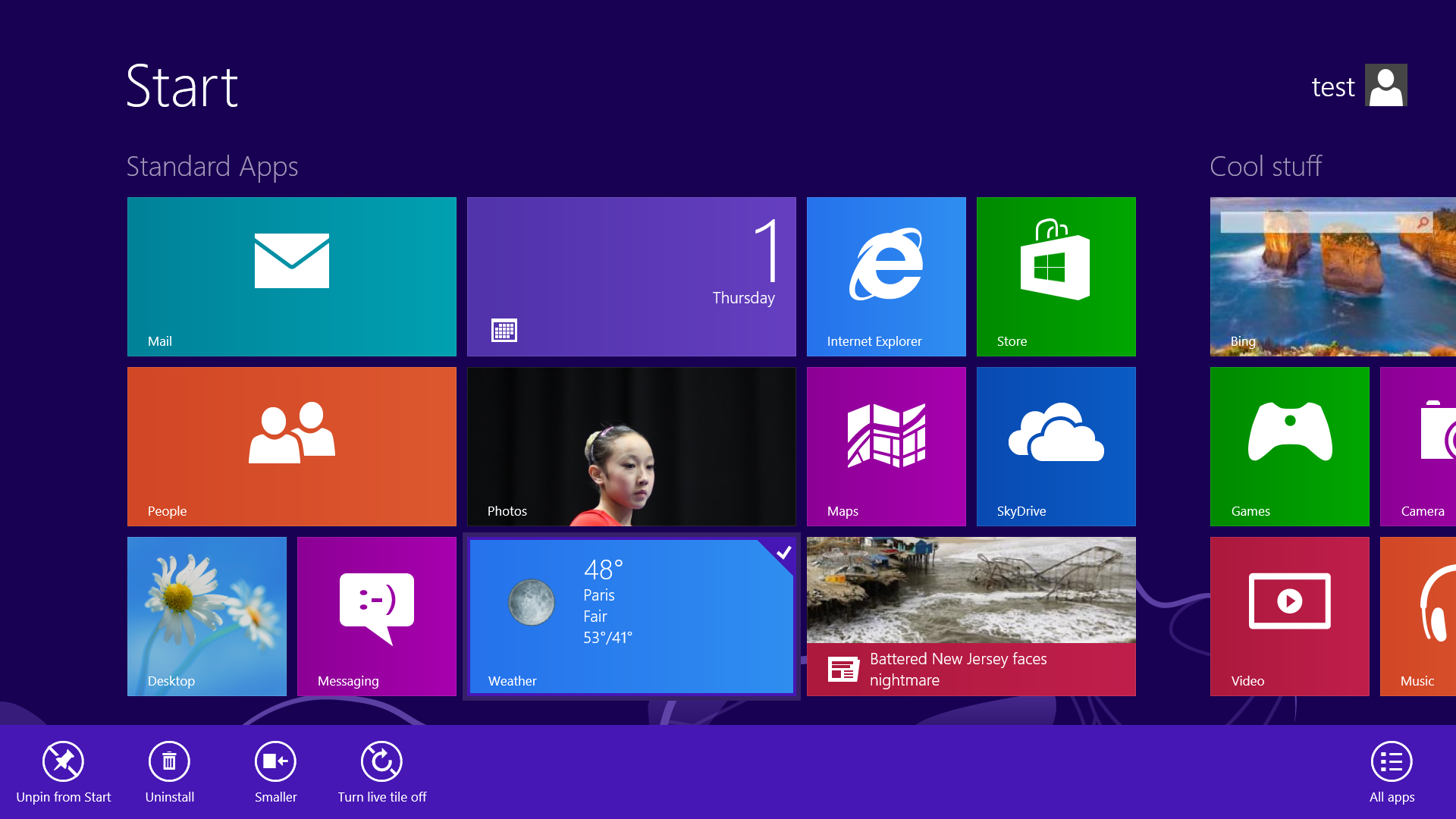
Use the Live tile option to customize what you want to see.
When looking at the plethora of tiles on your Start screen, the view can get stagnant, despite all the pretty colors.This is where Live Tiles come in. They offer real-time data right on your Start screen, and you don't need to open any apps. For example, the Weather tile will show you the current conditions, and Mail will show you the subject of the latest message you've received.
You can customize which apps are live and which aren't by right-clicking on the tiles. A settings bar on the bottom will pop up with an option to turn the Live Tile on or off. Simply select the preferred option, and you're all set. Note, however, that not all apps have a live, real-time data-streaming option.

Start in Safe Mode - Windows 8


Safe Mode is a great way to get into your system when something won't allow you to start up normally. Troubleshooting becomes a breeze when corrupted drivers and files aren't loaded that prevents a system from functioning. It used to be as easy as pressing F8 when the system starts up, but doing so with Windows 8 will take you to Automatic Repair Mode. The trick to getting back to good old fashioned Safe Mode? Hold down the Shift key and press F8 while booting up.
This takes you to the Recovery mode. Select "advanced options," then "troubleshoot," then the "advanced options" again (there are a lot of advanced options). Select Windows Startup Settings and finally the Restart button. This will reboot the computer and give you the option to boot into Safe Mode.
If you need to get into Safe Mode from within Windows, open the dialog box (the Windows key + R) and type "msconfig" (no quote marks). Select the Boot tab and check the Safe boot box. The system will continually boot into Safe Mode until you go back and uncheck the box.

Refresh your PC - Windows 8


Enjoy a fresh PC without losing everything.
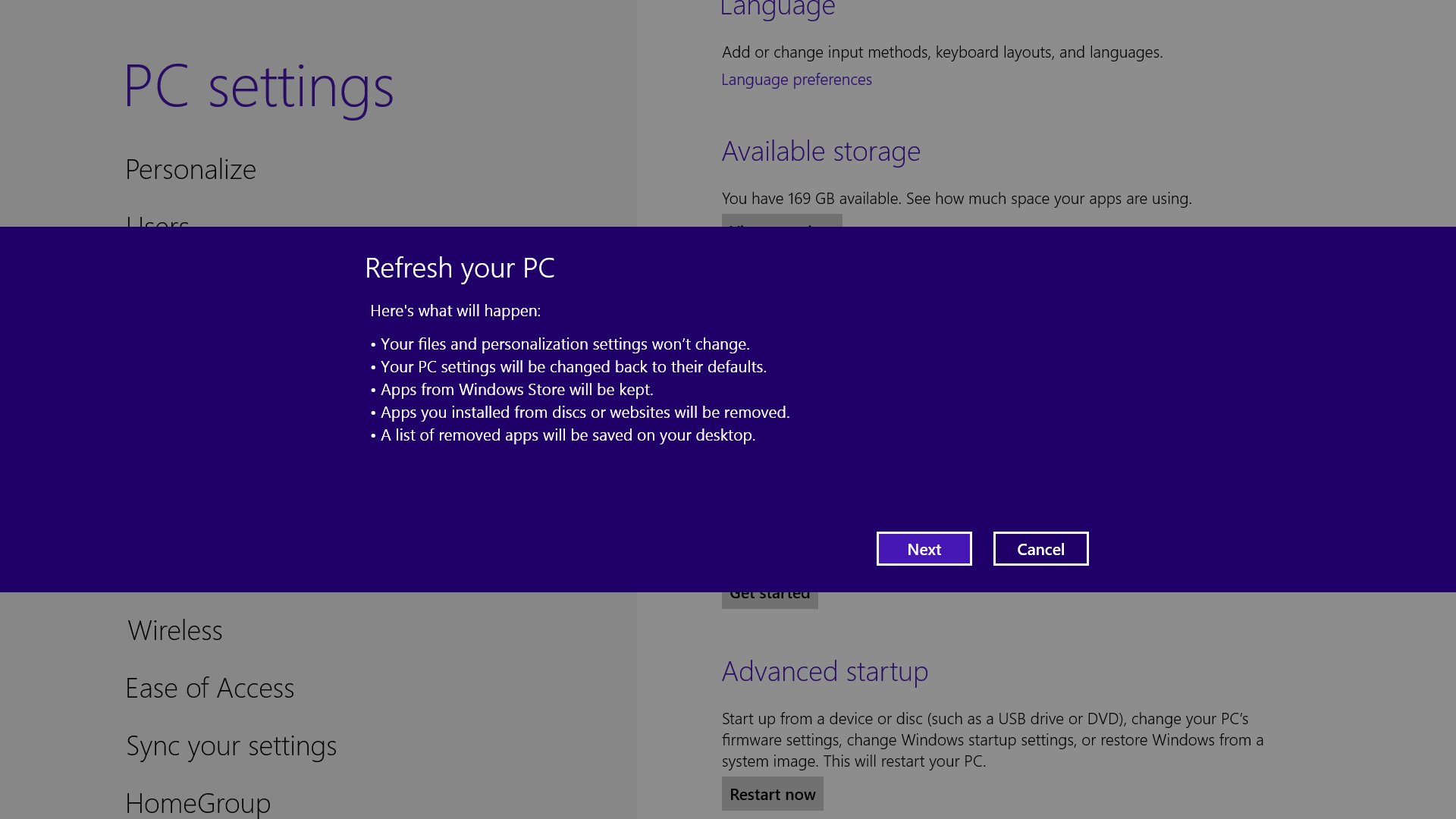
If your system is feeling a little sluggish, it may be time for a refresh. In the past we would have to find our copy of Windows 7, back up all of our data, and perform a fresh install to enjoy that back-to-factory-fresh feeling. But now Windows 8 allows you to perform a fresh install from within Windows without losing any data.
In order to perform the refresh, go to Settings and click the Change PC Settings tab near the bottom. Select the General tab and find the "Refresh your PC without affecting your files" section near the middle (you may also select "Remove everything and reinstall Windows" to get the true factory settings treatment). Select "Get started" and press "Refresh." After a few minutes the PC will restart, and you will have a fresh copy of Windows 8.

Log in without a username or password - Windows 8

To speed up the log-in process, you may want to disable the username and password log-in screen. You can do so by opening the Run window (press the Windows key + R) and typing in "netplwiz" to access the User Accounts dialog box. Uncheck the box near the top that says "Users must enter a user name and password to use this computer." ClickOK, and enter the username and password one last time to confirm your choice, and you are all set for easy access to your system.

Boot to the desktop without an app - Windows 8


Skip the Start screen and get right to the Desktop.
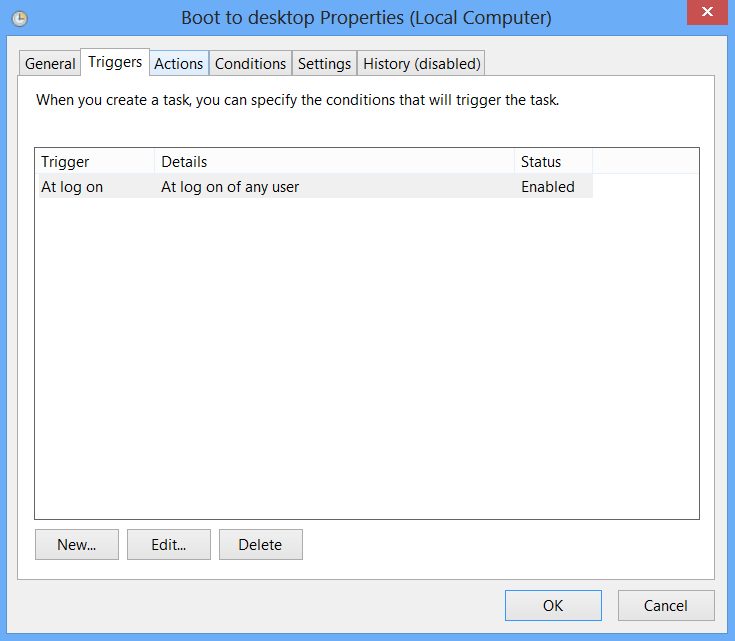
One of biggest complaints about Windows 8 is that it boots straight to the Start screen—an annoyance for many committed desktop users. The Start8 utility helps you avoid this indignity (among other cool features), but you can actually boot straight to the desktop without installing anything extra.
Go to the start screen and type in "schedule" to search for Schedule Task in Settings. Click on Task Scheduler Library to the left, and select Create Task. Name your task something like "Boot to desktop." Now select the Triggers tab, choose New, and use the drop-down box to select starting the task "At log on." Click OK and go to the Actions tab, choose New,and enter "explorer" for the Program/Script value.
Press OK, save the task, and restart to test it out!

Create a picture password - Windows 8


A fun way to protect your system.
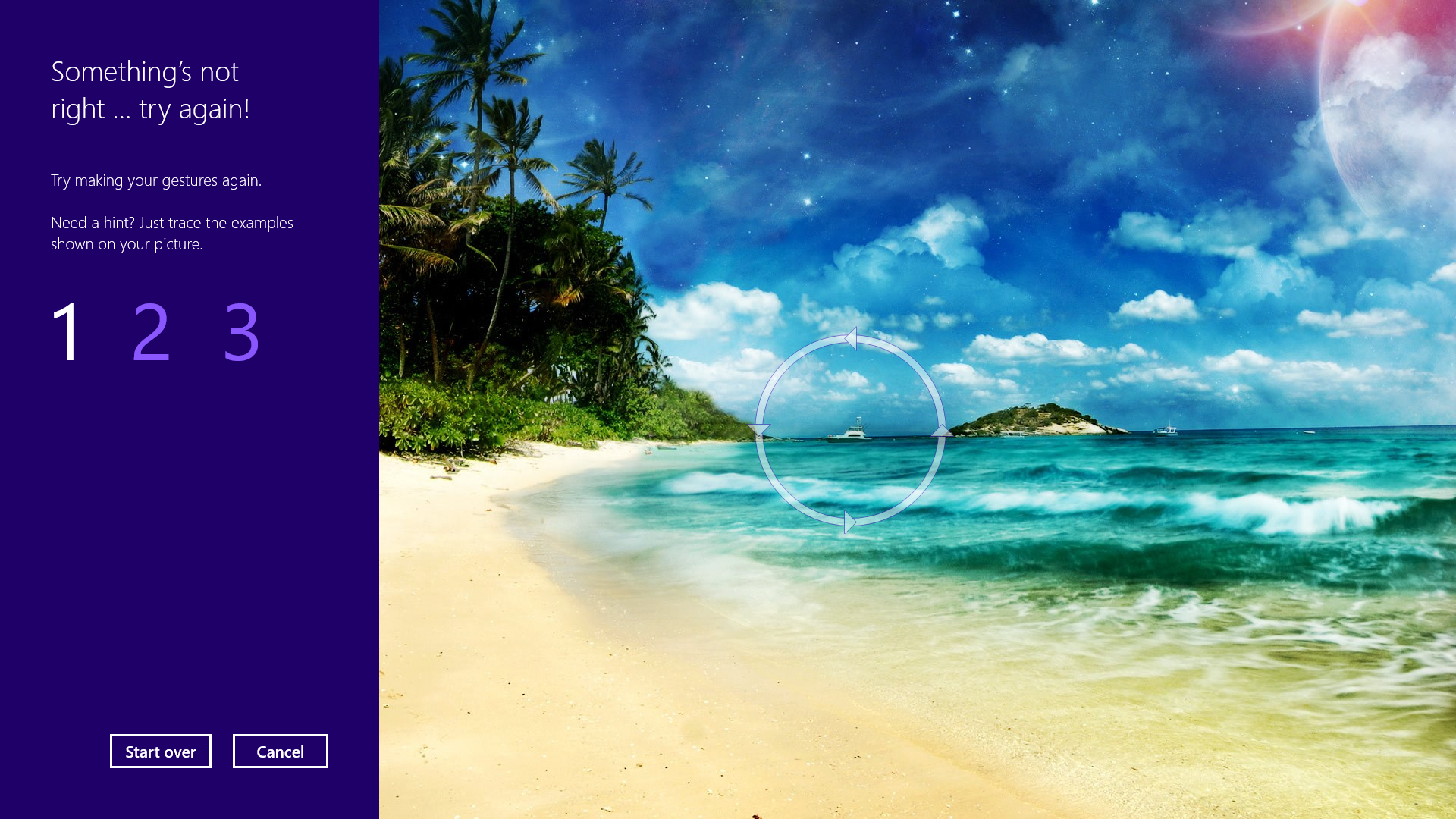
Using a picture password is a fun way keep your device secure while not having to remember a complex password. To enable it, press the Windows key + I to get to the settings charm. Click "Change PC settings" at the bottom right, and go to the Users tab. Under "Sign-in options" will be the "Create a picture password" button. This will give you the option to choose any picture, and then define three gestures anywhere on the image. Your gestures can be circles, swipes and clicks.
For example, to set a picture password for the image above, you could click on the highest palm tree, draw a circle around the island, and then swipe down from the lens flare in the upper right. Just beware: The direction of each gesture matters! After confirming it a couple times, your picture password will be set.

Share and share alike - Windows 8


Play with the Share charm in every app.
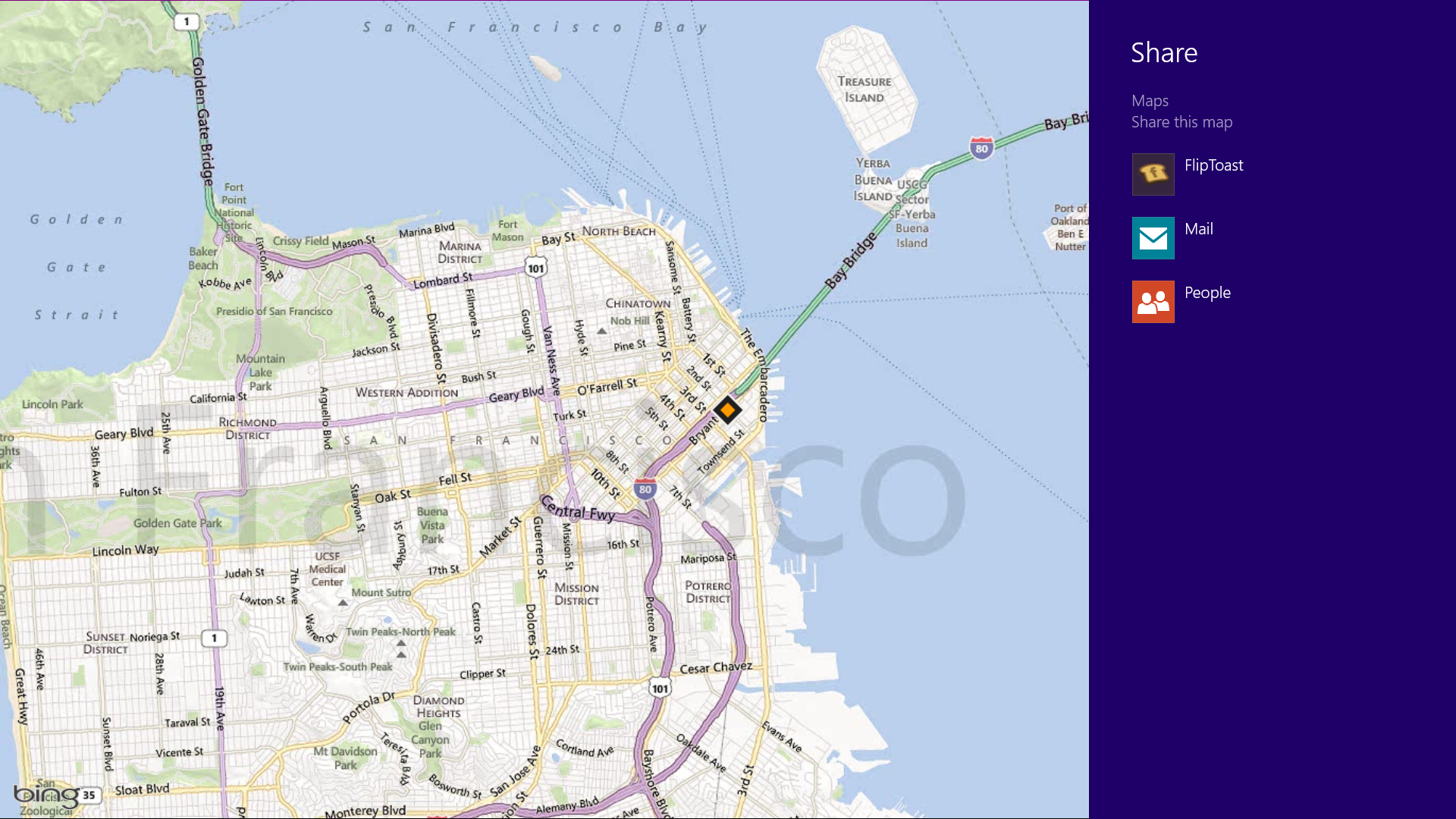
Windows 8 is Microsoft’s first social-media-aware PC operating system. Using the Share button located on the Charms bar, you can pick any number of elements from your Windows 8 Store apps—say, a location from your Maps app, a news story from the Finance app, or a even a contact from your People app—and then distribute that item to friends via other Windows 8 programs.
Perhaps most conveniently, you can quickly share a photo via email or Twitter, or to your own SkyDrive or Windows Phone. The Share button is contextual, and the more you use it, the more you’ll discover which apps share with each other, and which don’t. (Hint: None of your desktop apps offer sharing opportunities through the Charms menu.)

Go to Task Manager for Startup items - Windows 8


Task manager is more useful than ever.
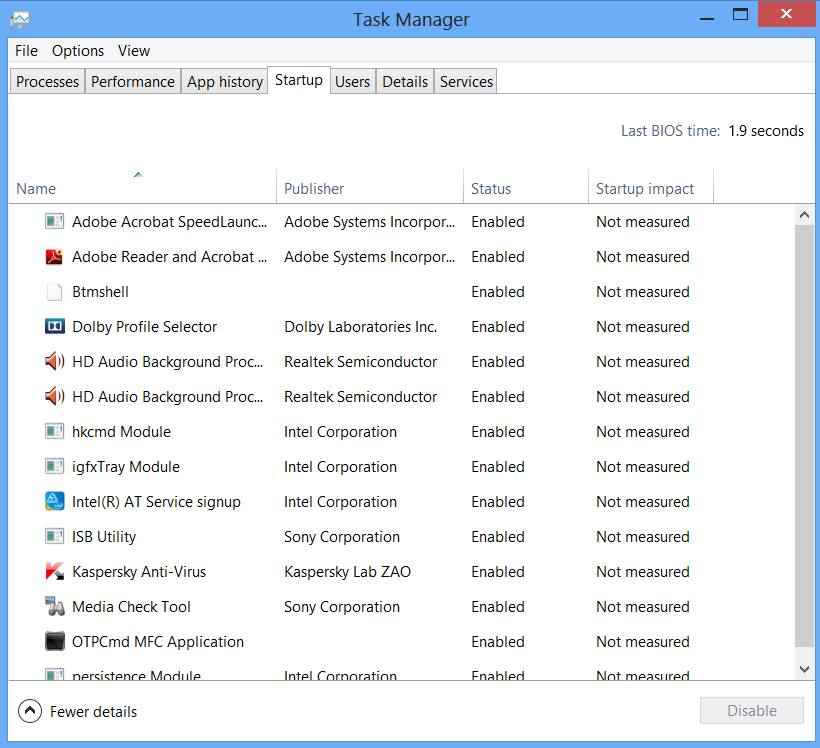
You no longer have to run the MSConfig program to change startup items. Startup items now show up in a tab on Task Manager. Simply press Ctrl + Alt + Del and select Task Manager. Click the "More details" tab at the bottom and find the Startup tab at the top.

Use Windows 8 apps and your desktop simultaneously - Windows 8


Because the Windows 8 experience is split between new Windows 8 Store apps and old-school desktop apps, the operating system is prone to some strange behaviors. Case in point: When running a multimonitor setup, Windows 8 apps will consume your main screen, leaving your secondary screen running the desktop. This arrangement would seemto allow full-screen multitasking among both types of apps—a modern app on the left side, a desktop app on the right side—but this isn’t the case. Indeed, as soon as you begin using the desktop on your secondary screen, the new-style Windows 8 app disappears, and your primary screen begins running the desktop.
But here’s a workaround. On your primary screen, use the new Windows 8 split-screen “snapping” function to run the desktop and a new Windows 8 Store app together. The desktop can take up the left-hand sliver, while the Windows 8 app consumes the majority of the screen. Now use your second display for a full desktop view. In this arrangement, you can fully multitask between new-style apps and desktop apps, and both windows will be large enough to be useful.

Bring up the Quick Access Menu - Windows 8


The secret Start button for power users is hidden at the bottom-left.
Right-clicking on the lower left of the screen—whether you’re in the Windows 8 Start screen or in the desktop—will bring up the Quick Access Menu, which enables a direct line to many key system management chores, including Disk Management, Task Manager, Device Manager, and Control Panel.

Adjust SmartScreen settings - Windows 8


Choose your own level of safety with SmartScreen.
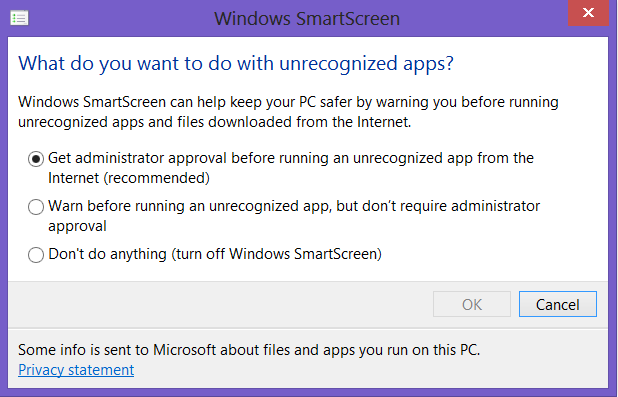
SmartScreen warns you before running an unrecognized app or file from the Internet. While it's helpful to be aware of a file's source, constant warnings can also get a little annoying. By default, you need an administrator's permission, but this can easily be adjusted to just a warning or no indication at all. Using the magic search function described above, type "security" at the Start screen and find the "Check security status" in the Settings tab. From this area, you can adjust various security settings, including the Windows SmartScreen.

Adjust privacy settings - Windows 8


Customize your privacy settings to your liking.
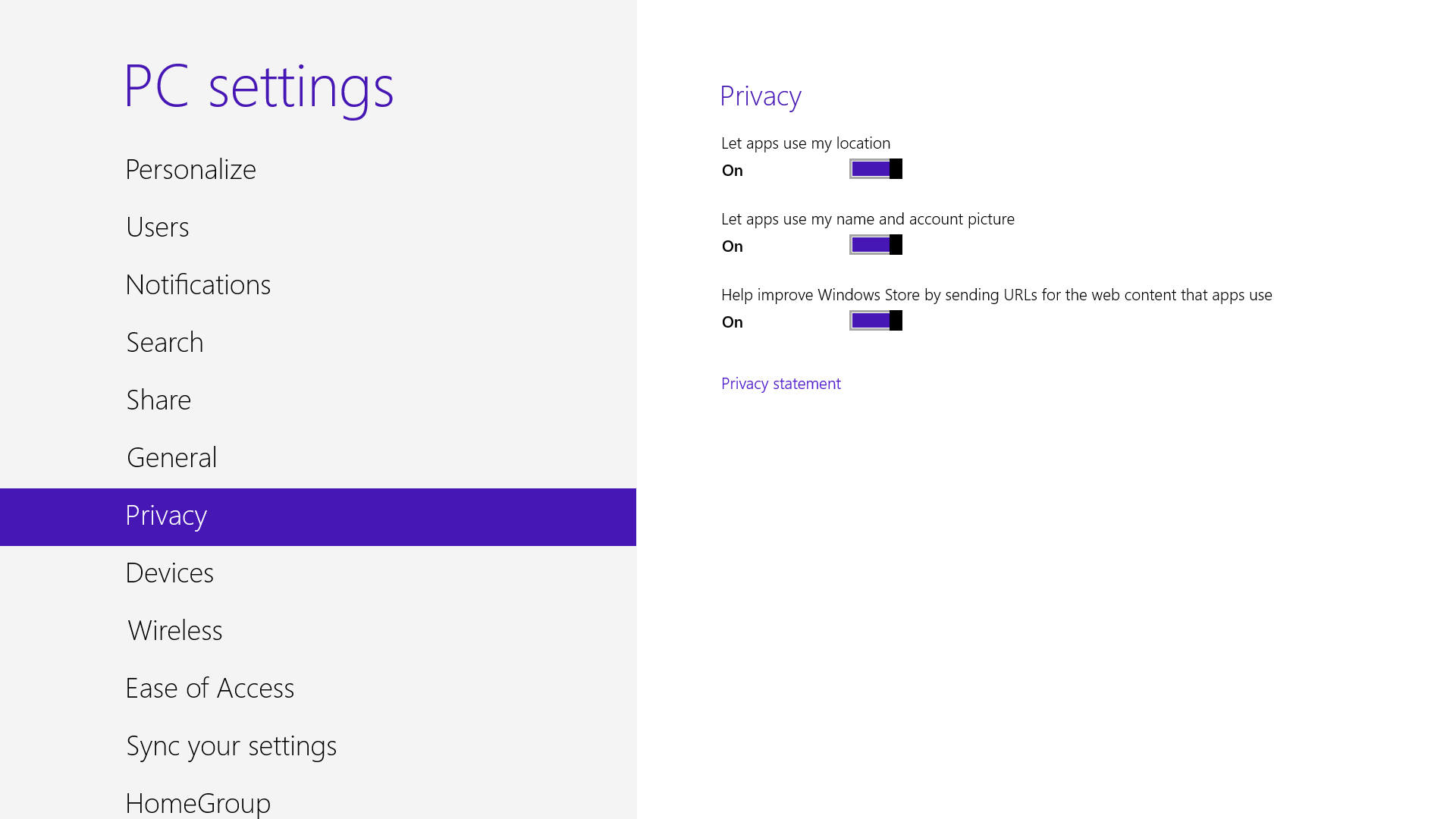
A lot of apps tap into very personal information by default. Indeed, your pictures, location, and name are liberally woven throughout the system, and like many users you may not be comfortable trusting your machine with that much sensitive data. To adjust the settings, press the Windows key + I, and go to Change PC Settings. Select the Privacy option, and personalize the settings for your personal data there.

Use centralized, contextual search - Windows 8


Search for anything in any app from one place.
The Search function located on the Charms bar is packed with power, letting you search the directories of not only your Windows 8 machine, but also the greater Windows ecosystem. Simply choose the bucket of data you want to sift through—it could be all your installed apps, your system settings, your files, your mail messages, or even an external service like the Windows Store or Bing Maps—type in a keyword, and hit Enter. The Search function will then return the results, perfectly contextualized for the database you’ve addressed
Oh, and how's this for cool? You don't even need to hit the Charms bar to access Search. From the Start screen, simply start typing, and you'll be quickly whisked to the text-entry field for search queries. Try it. It works!

Close an application - Windows 8


Closing an app sounds simple enough, but you'll quickly notice that close buttons are hard to find in Windows 8. That's because Microsoft encourages us to run apps in the background where they'll take up minimal resources, but still be accessible at any time.
Nonetheless, if you insist on being rebellious, you can close an app by dragging it with your mouse or finger from the top of the screen all the way down to the bottom. As you drag, the app will miminize into a thumbnail, and when you reach the bottom, it will disappear from view. Alternatively, you can still close apps via Alt + F4 and through the Task Manager.

Categorize your apps


Start screen customization for the organized.
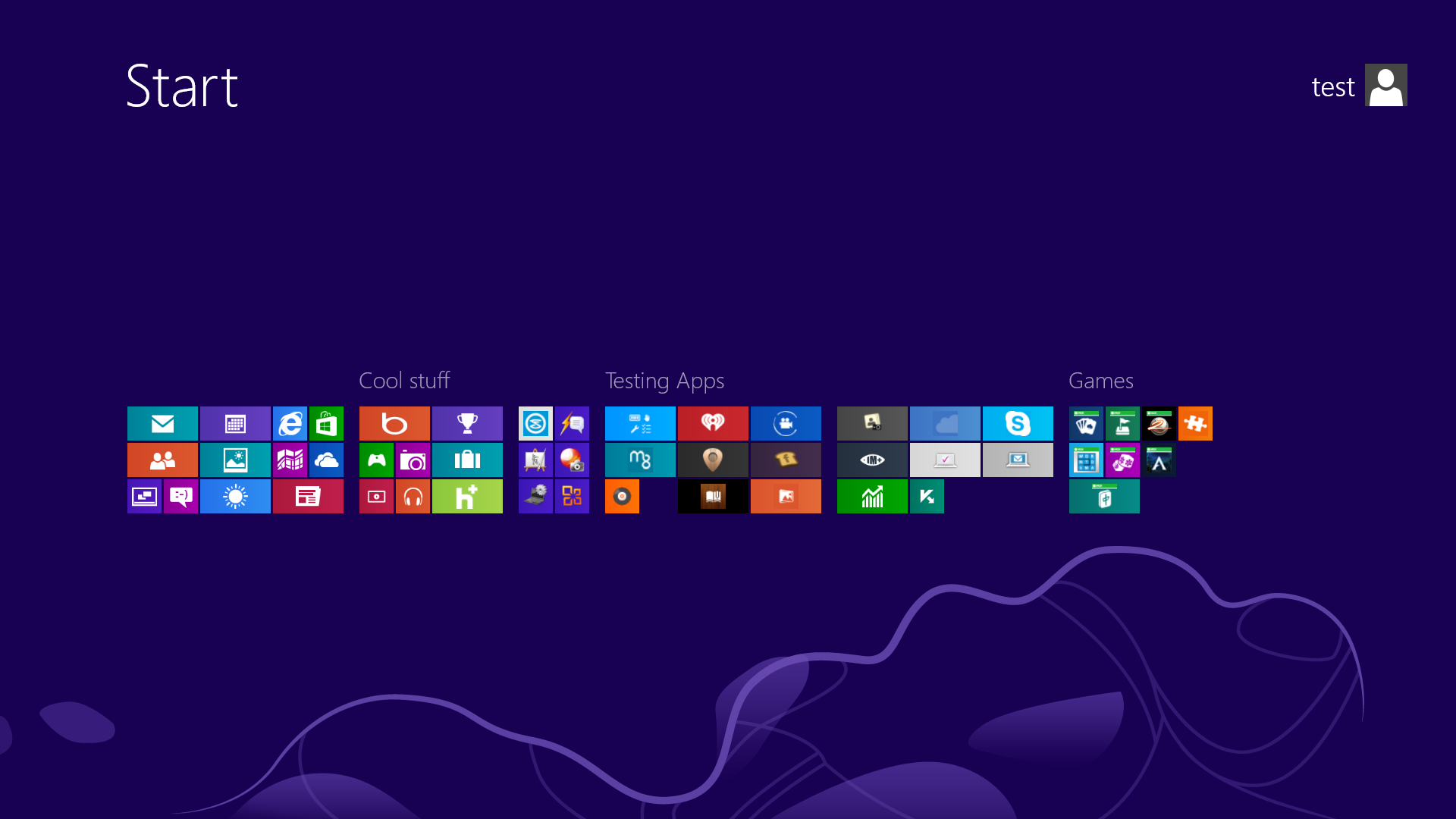
Your Start screen can become a cluttered mess if you collect too many apps and other elements that have been pinned to the screen as tiles, so take advantage of built-in organization tools that let you divide everything into labeled groups.
First, drag all the tiles you want to assign to a single group to the far right-hand side of your Start screen in vacant territory; the OS should sequester the tiles together. Once you're satisfied with your assembly, use semantic zoom (described above) to get a bird's eye view of your desktop. Now right-click the group (or simply drag down on it), and select the "Name group" option on the left of the bar that appears below. Type in the name, and enjoy your newly organized Start screen!

Zoom in tight - Windows 8


See all your tiles and groups at once with semantic zoom.
The Start Screen is full of nice, big, chunky tiles that represent all your apps. The tiles are easy to see in small groups, but what if you have hundreds of apps installed? Most will be hidden from view, unless you want to do a lot of scrolling. Enter the new semantic zoom feature. If you’re using a touch display, squeeze the Start screen with two fingers to receive a bird’s eye view of your entire screen contents. And the feature is also available to mouse and keyboard users: Simply hold down the Ctrl button, and use your mouse wheel to zoom in and out.

Employ the hottest hotkeys we know - Windows 8


In these key combinations, hold down the Windows key (normally located between Alt and Ctrl) and another key, as described on this list.
  • Press the Windows key to enter the tiled Start screen.
  • The Windows key + M minimizes everything that's showing on the desktop.
  • The Windows key + E opens Explorer for quick access to folders.
  • On the Start screen, press the Windows key + D to instantly get to the desktop.
  • The Windows key + Tab opens a list of currently running programs.
  • The Windows key + Print Screen takes a screenshot and saves it in a Screenshots folder nested in your Pictures folder. 
  • To take a screenshot on a Windows 8 tablet, simultaneously press the Windows button and the volume-down button on the tablet chassis.
  • The Windows key + Q opens a global search menu. Type what you're looking for and where you would like to look.
  • The Windows key + W opens a search in your system settings to quickly locate and change system properties.
  • The Windows key + F opens a file and folder search.
  • The Windows key + Pause opens the system properties page to show you a quick rundown of your specs.
  • The Windows key + "," (that's the comma sign!) makes all current windows transparent, giving you a peek at the desktop as long as you hold down the Windows key.
  • The Windows key + "." (the period) snaps a window to the right or left side (toggling each time you press ".").
  • The Windows key + R prompts the Run command—useful for quickly launching apps and other routines with a command prompt.
  • The Windows key + X opens the Quick Access Menu, exposing system functionality such as the Command Prompt, Disk Management, File Explorer, Run, and more. Alternatively, you can right-click on the bottom right corner of the screen to spawn the Quick Access Menu.
  • The Windows key + I opens the settings menu, giving you quick access to the Control Panel, Personalization, and your Power button, among other features.
  • The Windows key + O locks orientation on devices with an accelerometer.

Domestic calls through Gmail to remain free in 2013


In what’s rapidly becoming a holiday tradition, Google announced Wednesday that it’s extended free calling in Gmail for another year.
First added as a feature to Gmail in 2010, the Call Phone option lets Gmail users place calls to landlines and mobile phones from within the web-based email client.
In a Wednesday blog post, Google said that U.S. and Canadian Gmail users can continue to make free domestic calls through 2013. (Google does charge for international calls).
If Wednesday’s announcement sounds familiar, that’s because it echoes similar extensions offered last year and in 2010. At the time calling features were added to Gmail two years ago, Google had said that it would start charging for domestic calls at some point. But that point appears to be pushed farther into the future once more.

Google's biggest hits and misses of 2012


And a Googly year it was...


Google is easily the most prolific of the major technology companies, as it proved in dramatic fashion in 2012. We saw an augmented reality headset, cool new Nexus hardware, clever new Web services, and even a few terrible, terrible ideas. Throughout the year, the company continually surprised us—and reminded us that the modern Google is interested in much, much more than refining its search algorithms.

Can you recall the best and worst of Google’s 2012 output? Click through this slideshow, and let us know if we forgot to include any massive wins or fails.


HIT: Nexus 7

This June, Google became a major player in the tablet market when it unveiled the 7-inch Nexus 7 for a mere $200—a price that should make every potential Kindle Fire buyer think twice about aligning with Team Amazon.

The Nexus 7 was quickly acclaimed as the best Android tablet available, and even impressed iPad fans. Built in partnership with Asus but branded as a full Google product, the Nexus 7 is comfortable to hold, offers a high-quality display, boasts good battery life, and is zippy and responsive to gesture controls. Who said a “real” Android tablet would never be able to compete in a gadget space dominated by Apple and Amazon?


MISS: Nexus Q

Google's biggest flop was announced alongside the Nexus 7 at June’s Google I/O conference. The Nexus Q is a Death Star-like orb designed to stream music from your Android smartphone or tablet. That sounds good on paper, but the hardware costs a whopping $300 and doesn’t include any speakers. What's more, you can’t control it with iOS, Windows Phone, or any desktop software; its Android support is limited to Ice Cream Sandwich and Jelly Bean; and it supports only Google Music, Google Video, and YouTube, so forget about using it to stream content from third-party apps.

Google bragged that the Nexus Q was its first fully homegrown hardware product—conceived, engineered, and manufactured with no partner support. But it was also a total fail, and has been pulled entirely from the Google Play store.


HIT: Google Glass

Taking a major leap into the future, Google used a brazen skydiving stunt at Google I/O to publicly unveil an early prototype version of Google Glass, a futuristic augmented reality headset that one day may replace your smartphone. Google ultimately envisions a product that can snap photos, facilitate video chat, provide walking and driving directions, and receive and send instant messages and emails—all via a head-mounted display. In 2013, Google will deliver prototype Google Glass units to a limited number of developers who paid $1500 each to get their hands on Google's sci-fi spectacles.

Is the Glass project somewhat wacky or even borderline insane? Most definitely. But the skydiving stunt does prove that Google has the germ of an idea that just...might...work.


MISS: Google hobbles ActiveSync

In December, Google announced that users of its free Gmail service would lose the ability to use Exchange ActiveSync for syncing Calendar, Gmail, and contacts on new devices. (The service, however, will continue for business, government, and education customers of Google Apps.) Google said it was making the switch because it could use open protocols to achieve similar results, but the decision really appears to be a swipe at Microsoft, the creator of Exchange ActiveSync. In 2012, the companies also battled over Google's revised privacy policy, patent issues, and the current war for Santa Claus.


HIT: Google Now

Introduced with Android Jelly Bean in June, Google Now is the company’s take on a digital personal assistant that collates personal data and delivers it to you unprompted. For example, if you’re due to attend a meeting on the other side of a town, Google Now will, in theory, alert you to traffic problems that might make you late. The tool can also share sports scores, flight-time alerts and weather reports, all unprompted.

Google has been circulating the concept of Google Now for some time, and it’s great to see it finally reach fruition. Google Now is also an early example of services Google can deliver based on its unified privacy policy, which lets the company merge all your Google data into a single database. Google Now is expected to roll out to desktop PCs as part of the Chrome browser in the coming months. We welcome this new addition.


MISS: Cheap Chromebooks

Google and its manufacturing partners finally nudged down the prices of Chromebooks (laptops running the browser-based Chrome OS) below $200 in 2012. Three budget Chromebooks were released this year, including the $200 Acer C7, the $250 Samsung Series 5 550, and a $300 version of the C7. Still, even with much lower prices, users were more interested in buying a 7-inch tablet for $200 than blowing their cash on a hobbled notebook. The Chromebook initiative isn’t dead, but if public support drops any further, we should expect to see hardware partnerships all but die in 2013.


HIT: Google Fiber

Google became an ISP in July 2012, announcing specifics for Google Fiber, a fiber-to-home service in Kansas City that features 1- gigabit-per-second data bandwidth, cable TV service, and reasonable pricing. In true Google style, there's even a free option (although it has limited availability). So far, Google has only the most modest plans to expand its pilot project, but the company's flirtation with providing killer Internet service along with TV—and maybe one day phone service—may have competitors scrambling very soon.


MISS: Google Wallet woes

People will always be wary of new technologies, especially where their money is concerned. But Google didn’t help the adoption of Google Wallet, its NFC-based mobile payments platform, when several security concerns emerged. In early February, security firm Zvelo found an exploit that could reveal the security PIN for Wallet users with rooted Android phones. Soon after, the blog Smartphone Champ reported a far more serious security flaw that would allow a phone thief to reset a Google Wallet PIN, and access money on a prepaid card, even if the phone wasn't rooted. This flaw prompted Google to temporarily halt Wallet's prepaid credit card functions. Google is also having a tough time convincing wireless carriers to support Wallet in their partner smartphones.


MISS: Search Plus Your World

Google started to take search personalization to the extreme in January with the introduction of Search Plus Your World, a new search interface that’s supposed to elegantly bring up personalized, relevant content by harnessing data from Google+.

New SPYW results might include photos from your contacts and Google+ profiles of notable personalities and businesses. As the service rolled out, however, it really began to feel like one big promotion for Google+. Accessing data from other social networks would certainly mitigate the problem, but that would only steal thunder from Google+, which continues to grasp for relevance in a world dominated by Facebook and Twitter.


MISS: 11 months of Jelly Bean

Google was so excited in November to introduce Android 4.2, an updated version of Jelly Bean, it killed an entire month in the system's People/Contacts app. As the Android team said in a Google+ post, “We discovered a bug in the Android 4.2 update, which makes it impossible to enter December events in optional fields of the People app (this bug did not affect Calendar). Rest assured, this will be fixed soon so that those of you with December birthdays and anniversaries won't be forgotten by your friends and family.”


HIT: Musical doodles

Sometimes Google’s custom home page logos—also known as Google doodles—get a little old, especially for specious non-events, such as the 46th anniversary of Star Trek. But we’re not total curmudgeons, and we have to applaud the Robert Moog-inspired doodle posted in May that lets you create and share your own musical compositions. The Moog doodle even inspired a wide array of inventive musical creations on YouTube and Google+. In November, Google introduced another musical treat with Jam, a Web app for Chrome that lets you play in a virtual band, online with friends.


MISS: Android fragmentation

Google has been so busy rolling out new versions of Android that it hasn't spent enough time with hardware partners to update legacy devices to its latest OS. Indeed, as of December, a little more than 50 percent of users were still running Android 2.3 (also known as Gingerbread), according to Google's developer site. Gingerbread is a 2-year-old system, and has since been eclipsed by two newer Android smartphone OSs. Bringing updates to legacy phones has always been an issue for Google, not to mention for hardware manufacturers, which are complicit in the problem. The issue of OS “fragmentation” was a big deal in 2011, and we didn’t see much relief in 2012.


HIT: Google Trekker

Google Maps already offers Street View, a mapping tool that lets you virtually walk down city streets, and even enter indoor spaces, all from the comfort of your Web browser or maps app. But in 2012, the company revealed a new technology that takes all the photographic equipment that’s loaded into Street View vehicles—namely, 15 cameras, each snapping 5-megapixel images every 2.5 seconds—and puts it into a 40-pound Trekker backpack that you can take to extreme locations. The upshot? Now challenging terrain like the Grand Canyon can be captured in 360-degree panoramic views. Google hasn’t yet made live its Grand Canyon image captures, but the mere concept of Trekker is a hit.




Google gets into tablets


Google's Nexus 7: Less than $50 per processing core.
The Nexus 7 and Nexus 10 weren’t the first Android tablets, of course, but they were the ones that made Android a viable threat to the iPad. (The Kindle Fire is only sorta-kinda Android.) With a gorgeous 1280 x 800 pixel screen and a quad-core 1.3 GHz processor, the Nexus 7 is a compelling product with an even more compelling $200 price tag. Suddenly the iPad’s $500 price tag looks positively luxurious, and even the iPad Mini seems like the less practical choice.
The Nexus 10, on the other hand, delivers an iPad Retina display-beating 2560 x 1600 resolution and similarly beefy internals for just $400. In other words, Google's thrusting tablets forward while driving prices downward across the board.